

Calculator workshop presented by James Salvadon PowerPoint PPT Presentation
1 / 29
Title: Calculator workshop presented by James Salvadon
1
Calculator workshop presented by James Salvadon
2
Calculator WorkshopPresented by James Salvadon
Spring 2004 developmental workshop I.
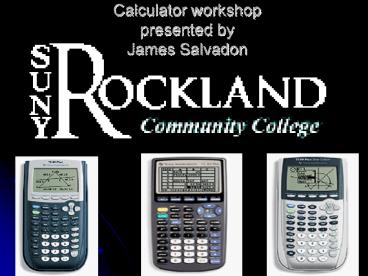
Introduction to the TI-83/83 and the TI-84
Silver edition. II. Comparison/similarities -
key buttons and features. III. FAQS and
answers. IV. Applications and
programming. V. Interconnectivity- uploading
and downloading from a calculator to a
calculator and from a laptop to a calculator.
3
Texas Instrument History
A brief history lesson on the Texas Instrument
calculator series. The company was founded in
1930 as Geophysical Service. It began by
providing contract exploration services to the
petroleum industry. Throughout the 1940s and
50s it had evolved into a leading designer and
manufacturer of innovative defense electronics
systems and semiconductors. The company has also
been credited for being the first to mass
produce silicon transistors in 1954 and for
inventing the integrated circuit, the micro-chip
in 1958 and the electronic hand-held calculator
in 1967 but the very first calculators bearing
the TI brand began to appear in 1972. Source
Texas Instruments Co.
4
Different TI-Calculators
There have been a steady flow of Texas Instrument
calculators over the last 32 years. Here are the
most notable TI-calculators. 1972 TI-2500, 1973
SR-10, 1974 SR-50, 1975 SR-52, 1976 TI-5040,
1977 TI Programmable 59 1978 TI-1030, 1978
TI-50, 1979 TI-35, 1981 TI-1766, 1982 TI-30
SLR, 1985 TI-30 Galaxy, 1986 TI-60, /1987 TI-12
Math Explorer, 1988 TI-68, 1990 TI-81( TI-first
graphing calculator)1991 BA II PLUS, 1992 TI-85,
1995 TI-83, 1999 TI-83TI- 92, TI-83 silver
edition, TI-84, the Voyager 2000, the Navigator
2000,and TI-84 silver edition are the latest
Texas Instruments on Todays market. Source
Texas Instruments Co.
5
TI-83/83 -VS- TI-84
- TI- 83/83 Versus TI-84
- The TI-84 has more memory, more features and
greater capability than - the TI-83/83 series.
- It has preloaded finance applications that allows
you to calculate - personal investments, mortgage payments,
annuities etc - It has more spaces for graphing handheld software
applications (Apps) - and interchangeable faceplates that let you
customize the appearance of - your calculator.
- It also has more linking features that allows
you to upload and download - course related materials from the internet and
from a calculator to a calculator.
6
Frequently asked questions and answers
The next few slides will address some of the most
frequently asked questions by students. A Texas
instrument calculator is used to answer these
questions. Note Some features in this
presentation are only available In the TI-84
version. In most cases, the commands used in this
presentation will work for both versions, 83s
and 84s.
7
Key buttons on your calculator
- The 2nd button is used activate the features in
(yellow color(ti-83)/Blue color for 84) - The cursor is used to move around the screen(i.2
left, right, up or down) - The ON/Off button is used to turn on/off the
calculator - The enter button is used to execute a command
- The Alpha button is used to type an alpha-numeric
character - The mode button is used to set the calculator to
a desired mode - Quit button is used to exit a menu screen
- Clear button is used to clear the screen
Cursor Button
On/Off Button
8
Difference between the two negative signs on your
calculator VS ( )
Negative signs The negative sign should not be
confused with the subtraction sign. When
subtracting two numbers use the
located above the plus sign symbol
- and when negating a number use the ( )
Located at the very bottom right of your - Calculator.
- For instance
- 4 4
- To negate 17 , well use ( ) 17
9
Typing and storing
To type consistently without any interruption,
set the calculator to Alphanumeric mode as
follows
8. To store a value in a variable, use
the store button from the bottom left hand corner
of your calculator as follows
Type 2 STO-gt The
expression 3x2 4x 4 will be evaluated
as follows
3(2)2 4(2) 4 3(4) 8 4 8
10
To obtain fractional answer
Fractional answers To simply ½ 1/3 and obtain
an answer that is in fractional format, type ½
1/3 sto ?frac to get 5/6.. Observe that ½ 1/3
.83 without this option. To convert 25/18 to
an improper fraction, type 2 5/18 ? frac as
seen here Keep in mind the sto button
is located at the bottom left of your calculator
on top of the ON button. This feature can also
be used to convert a decimal to a fraction,
.8333333.. ? frac and pres Enter to display 5/6
11
Square root function and Rational exponent
To find the square root of a real number n ?
0, Press x2 n and press Enter to
display result
__ Example
x2 25 Enter will display ?(25
5 To find the nth root of x ( assuming it
exists), We press math and use the root
feature(5) out of the adjacent menu as
follows n ? x Example The fifth root of 32
can be calculated as follows 5 Pres 5 MATH x ?
32 will display 2 as shown here The third root
of 8 and the fifth root of 32 can also be
computed as follows (8) (1/3) 81/3
2 (32 ) (1/5) 321/5 2. To raise a number
to the -1 power use the x-1 key. To calculate
5-1 enter 5 and press x-1 to obtain .2 The
number e can be raised to any power. To calculate
e-2. 3 press ln (- 2.3) enter to
display .1002588437
12
Setup the calculator clock
- To setup the system clock, click on the mode
button, - Use the cursor to highlight the set clock option
out of the menu. - Enter the desired date and time.
- The following is a set up for January 3, 2005
957 AM (This feature is only available in
TI-84s and newer version of Texas Instruments
only)
13
The Most Common Menu Screens
CATALOG Menu
Mode Menu
Calc Menu
Math Menu
Graph menu
STAT Menu
Window Menu
Zoom Menu
Drawing menu
Test menu
Programming menu
Finance/Business menu
14
Using the mode features-Scientific notation
- To change a setting, use the cursor keys
- To highlight the desired option and press
- Normal indicates the numbers are displayed in a
normal fashion
To obtain a very large number or a very small
number in scientific notation, we highlight the
SCI feature from the mode menu to the
right For example 52000 will return 5.2 e4
which is equivalent to 5.2 X 10 4 .0063 will
return 6.3 e-3
15
Using the mode features
Important Always remember to reset the
calculator mode to standard after each setup! The
float feature out of the mode menu can be used to
round all you answers to whole numbers. To
round to your answer to the nearest whole
number, to the nearest tenths, hundredths etc
highlight 0, 1, 2 from the float menu to the
right
The round function key is located under
num button (upper left ) can be used to round
number
Rounding whole numbers and decimals To round
the number 234.6789 to a whole number, set the
floating mode above to zero. To round to the
nearest tenths, hundredths place set the floating
mode to 1, 2. On can also use the function
round( value, decimal). For instance round(
26.3678, 3) will return 26.368.
16
Using features out of the mode menu
The TI-83 has keys for three of the six
trigonometric functions sine, cosine and
tangent. Before you use one of these keys, always
be aware of the mode your calculator is in! Is
the angle involved given in degrees or radians?
Let's begin by finding the value of the 3
trigonometric functions for an angle of 120.
First, make sure the calculator is in Degree
mode.
6
On the Home screen, press the key for the desired
trigonometric function, then type in the angle,
then close the parentheses and enter the
command. The result shown is the approximate
value for that trigonometric function. Sin 120
?3 / 2 .8660254038, Cos 120 -1/2, Tan
120 - ?3 -1.73 To calculate in radian, the
radian feature must be highlighted out of the
mode menu For instance Sin 5?/3 , Cos 5?/3 ,
Tan 5?/3
6
7
6
17
Using the DMS features to Covert to
degrees,minutes and seconds
To start converting, set the calculator mode to
degree. Pres Matrix (ti-83) or
x -1 for ti-84 to Select ANGLE . (
keep in mind degree must be less than 999,999.
Minutes and seconds must be less than 60) To
convert 54 degrees, 30 minutes, 30 seconds to
degree, Set the mode to degree then type
5403030 and Enter to display 54.5083333.. To
convert 65.69 to degrees, minutes and seconds
type 65.69-gtDMS , Press Enter to display
6504124
18
Solving higher degree equations by factoring
Although the solver feature can be used to solve
and factor higher degree equations, The table
feature is the most efficient way to solve and
factor simultaneously. The Table button can be
used to factor and to find the zeros of a
function whose solutions are real. Let f(x) x4
15x2 10x 24 a)Press y (upper left to enter
the function) b)
Press graph to list the zeros of
f(x) Since the zeros of f(x) occur at x 1,
-2, -3, 4 The linear factors of f(x) are
(x-1)(x2)(x3)(x-4)
19
Graphing polynomial functions
Press y button, setup the window menu to the
desired length and width Observe the selected
values for x and the corresponding y values Graph
a) y x3 4x x y2
y x4 4x2
20
Graphing Rational functions
The Zdecimal feature out of the zoom menu is by
far the best tool available from your calculator
to graph a rational function. Observe the
difference of the two graphs for the function
x2 f(x) ----------- x2 - 1
Here the window is set up Here is setup
on zdecimal On zstandard
21
Solver higher degree equations whose solutions
are real and imaginary
Although the Ti-83/84 do not display imaginary
solutions for polynomial of degree higher than 2,
the table feature along with synthetic/long
division can be used to determine the real and
imaginary parts as well as the linear
factors. Determine the real and imaginary
solutions for the following polynomials P(x) x4
x3 -2x2- 4x -24 Observe from the table , the
real zeros occur at x 3,-2 So (x-3) and (x2)
are divisors of F(x), using synthetic division,
we can obtain the remaining linear factors as
followed
3 1 -1 -2 -4 -24 . 3 6 12 24 1
2 4 8 0
(x-3)(x32x24x 8) Using factoring by grouping,
the preceding polynomial can be factored as
follows (x-3)(x2)(x24) Set x-30, x2 0 or
x24 0 which implies, x 3,-3, 2i
22
Graphing conics
The following examples will illustrate the graph
of a Circle, Ellipse and Hyperbola using the
Texas instrument -84 Pres APPS then click on
conics, choose circle, one can use the conics
option to graph the a circle, ellipse or a
hyperbola Examples Graph a circle whose
equation is given by (x1)2 (y-2)2 42
(centered at (-1,2) with radius 4) an Ellipse
whose equation is given by x2/4 y2/25 1,
and a Hyperbola whose equation is given by x2/4
y2/9 1
23
Drawing a vertical line
Drawing a vertical line The graphs of
vertical lines can NOT be entered into the Y
menu, since their form is x c and y is
written as a function of x. Therefore the line
can be drawn as follows
Press 2nd-PRGM (DRAW) to see the DRAW menu
Enter the given value for x, say x 5 Select
Vertical 5 to draw x 5
24
Sequence Series
Listing terms of a sequence.
25
Memory Management Calculator Maintenance
MEM will allow you to reset memory,
clear/delete entries archive and unarchive as
needed. You can also calculate memory
availability and usage
26
Graphing Inequalities-Part I
Shading above or below a graph can be done by
accessing the Y menu a)Press Y and enter the
desired function. b)Use the left-arrow key to
move the cursor to the far left. c)Press the
enter key twice. d)The triangle is blinking.
e)Press Graph to see it. f)Go back to the Y
screen and press ENTER again. The graphs
should look like this
This is the lt option
This is the gt option
27
Graphing system of Inequalities-Part II
SYSTEMS of inequalities are graphs the same
way. NoteThe graph cannot distinguish between
"less than" and "less than or equal to" The
same for "greater than" and "greater than or
equal to" graphs. Graph Y lt .5x 3 and Y gt x2
28
Programming
Program are used to automate some frequently used
tasks. To create a new program, Press the PRGM
button, then choose new program, give it a name
and begin programming as illustrated below.Here
is a simple program to calculate the solution of
a quadratic equation LBL 1 PROMPT a, b,
c IF a 0 THEN DISPL Bad Input GOTO
1 END b2 4ac ? D IF D lt 0 DISPL No Real
Solutions IF D 0 THEN -b / (2 a) ? S DISPL
Solution , S END IF D gt0 THEN
________ ( -b ?b2-4ac) / (2a) ? x ( -b -
?b2-4ac) / (2a) ? y DISPL Solutions , x,
y END
29
Interconnectivity
- Of the best features of the Ti-84/83
is the ability to transfer data from one
calculator to another. - This process requires the linking cable that
comes with the calculator. - 1. Plug the cable into both calculators.
- 2. On the RECEIVING calculator, press 2nd -
X,t,0,n (LINK) - Use the right arrow key to highlight RECEIVE.
The screen will say "waiting..." - Press LINK on the SENDING calculator
- Choose what to transfer. Choose 3, to transfer
a program as illustrated below. - To transfer Data from your TI calculator to your
computer, you need tp purchase - the TI-Graphing link software and cable, Once
the software is installed - and the cable is connected to USB Port. You may
begin to upload and - download data by following the on screen
direction
Recommended

