

ERIC Default Search Screen PowerPoint PPT Presentation
1 / 24
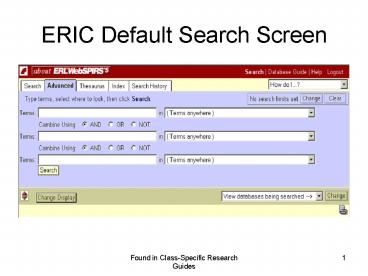
Title: ERIC Default Search Screen
1
ERIC Default Search Screen
2
Search Thesaurus for Term 1
3
Click on Subject Heading to explore its meaning
and related terms
4
Search Subject Heading 1
5
Search Thesaurus for Term 2
6
Choose appropriate Subject Heading
7
Search Subject Heading 2
8
Search Thesaurus for Term 3
9
Choose appropriate Subject Heading
10
Search Subject Heading 3
11
View your search history at any time during your
database session Click on the Search History tab
12
View Search History is available throughout your
search session.
13
Combine subject headings and search using and
14
View results by clicking on the icon under
Display
15
Display results
16
Set search limits here
17
Set to Journal Articles
18
Set limit to English language
19
Click OK to set limits
20
Search Limits
- Limits will be set on the last search completed
and on any new searches done. - You can change limits at any time.
- You can combine subject headings in multiple ways.
21
Look for SFX!
22
SFX/Find It links to Library holdings
23
If we dont own it, there is a smart link to
ILLiad/Interlibrary Loan
24
Capture persistent link and/or citation check
format for accuracy
Recommended

