

Using Interactive Charting PowerPoint PPT Presentation
1 / 6
Title: Using Interactive Charting
1
Using Interactive Charting
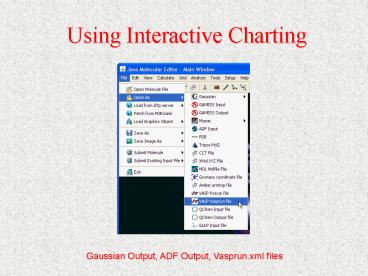
Gaussian Output, ADF Output, Vasprun.xml files
2
Selecting Interactive Charting
CheckBox for Interactive Charting should be
selected
To select available properties to chart use left
mouse button
To select multiple terms to chart use left mouse
button and hold down Shift or Ctrl key
3
Charting Multiple Terms
Selection of multiple terms will produce a chart
with several Y-Axes
4
To visualize snapshots use several methods
Left-mouse click in the plot area
Crosshair shows current snapshot
Drag slider
Use animation controls
Table shows current, previous and next values for
the total energy
5
Chart Controls
To save chart as a PNG image
To print chart
Point cursor on the plot area and do
right-mouse-click
6
Chart Controls Properties Dialog
Using Chart Properties dialog user can change
title, label and other parameters of the chart
Recommended

