

Samsung Galaxy J1 J100F White Unlocked Android Smartphone user guide PowerPoint PPT Presentation
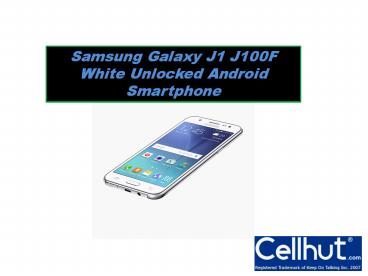
Title: Samsung Galaxy J1 J100F White Unlocked Android Smartphone user guide
1
Samsung Galaxy J1 J100F White Unlocked Android
Smartphone
2
PRODUCT INFORMATION The Samsung Galaxy J1 J100F
was released in 2015 in the month of January.
This galaxy phone is one of the best J series
smart phone. Software Hardware The Galaxy J1
J100F was released with Android OS version,
v4.4.4 (Kit Kat), and later it will be upgraded
to the higher Android version. The Samsung Galaxy
J1 J100F is powered by a Spread rum Dual-core 1.2
GHz Cortex-A7 CPU and Mali-400 graphical
processing unit. This J Series smart phone has an
internal storage of 4 GB for installing
applications and 512 MP of RAM for running
applications, RAM is not that high performance
but it will give you smoother experience. Galaxy
J1 J100F has 4 GB of internal storage and
upgradeable up to 128 GB via the use of an micro
SD card for installing additional media and
files, such as video, audio, images and etc. This
Samsung unlocked phone is packed with a Li-Ion
1850 mAh battery for a prolonged battery life.
3
Design Display The Samsung galaxy J1 J100F
Unlocked has 4.3 inches of large TFT capacitive
touch screen with 16M colors and 480 x 800 pixels
of resolutions with 217 ppi pixel density. The
dimensions of this phone is 129 x 68.2 x 8.9 mm
and its weight is around 122 g. This Galaxy J1
has dual sim functionality with dual stand by
feature. Camera Galaxy J1 Unlocked has 5 MP of
rear camera with f/2.2, 31mm, autofocus, LED
flash, Geo-tagging, touch focus, face detection
additional and front camera of 2 MP. Samsung
galaxy J1 record video at 720p_at_30fps. This
Samsung phone comes with Accelerometer and
proximity sensor.
4
Basics Using the touch screen of Samsung Galaxy
J1 J100F Do not allow the touch screen to come
into contact with other electrical devices.
Electrostatic discharges can cause the touch
screen to malfunction. To avoid damaging the
touch screen, do not tap it with anything sharp
or apply excessive pressure to it with your
fingertips. The device may not recognize touch
inputs close to the edges of the screen, which
are outside of the touch input area. Leaving
the touch screen idle for extended periods may
result in afterimages (screen burn-in) or
ghosting. Turn off the touch screen when you do
not use the device. It is recommended to use
fingers when you use the touch screen. Tapping
To open an app, to select a menu item, to press
an on-screen button, or to enter a character
using the keyboard on the screen, tap it with a
finger.
5
Tapping and holding Tap and hold an item or the
screen for more than 2 seconds to access
available options. Dragging To move an item, tap
and hold it and drag it to the target position.
Double-tapping Double-tap on a webpage or image
to zoom in. Double-tap again to return. Flicking
Flick left or right on the Home screen or the
Apps screen to see another panel. Flick up or
down to scroll through a webpage or a list of
items, such as contacts. Spreading and pinching
Spread two fingers apart on a webpage, map, or
image to zoom in a part. Pinch to zoom out.
Basics 22 Home screen layout Home screen The Home
screen is the starting point for accessing all of
the devices features. It displays widgets,
shortcuts to apps, and more. Widgets are small
apps that launch specific app functions to
provide information and convenient access on your
6
Power saving feature Use this mode to extend the
devices battery power. In ultra power saving
mode, the device performs the following
Displays colours on the screen as grey tones.
Restricts the available apps to essential and
selected apps only. Deactivates the mobile
data connection when the screen turns off.
Deactivates the Wi-Fi and Bluetooth features. On
the Apps screen, tap Settings ? Ultra power
saving mode, and tap the Ultra power saving mode
switch to activate it. To add an app to the Home
screen, tap and select an app. To remove an app
from the Home screen, tap ? Remove, select an
app with , and then tap OK. To change the
settings for ultra power saving mode, such as
network connectivity or sound, tap ? Settings.
To deactivate ultra power saving mode, tap ?
Disable ultra power saving mode. The estimated
maximum standby time shows the time remaining
before the battery power runs out if the device
is not used. Standby time may vary depending on
your device settings and operating conditions
Recommended

