

Inventory Manager Microsoft Dynamics CRM Plugin For Stock Control PowerPoint PPT Presentation
Title: Inventory Manager Microsoft Dynamics CRM Plugin For Stock Control
1
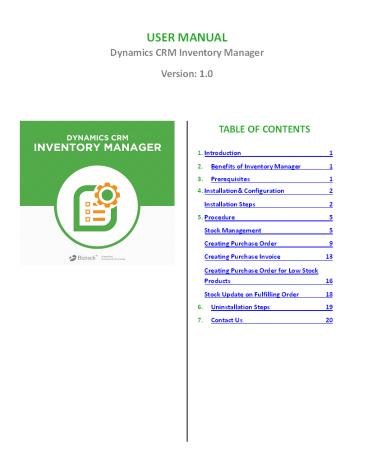
USER MANUAL Dynamics CRM Inventory
Manager Version 1.0
TABLE OF CONTENTS
- Introduction 1
- Benefits of Inventory Manager 1
- Prerequisites 1
- Installation Configuration 2 Installation Steps
2 - Procedure 5 Stock Management 5 Creating
Purchase Order 9 Creating Purchase Invoice 13 - Creating Purchase Order for Low Stock Products
16 - Stock Update on Fulfilling Order 18
- Uninstallation Steps 19
- Contact Us 20
2
- USER MANUAL Dynamics CRM INVENTORY MANAGER v1.0
- Introduction
- Inventory Manager from Biztech Consultancy is an
inventory management solution for Dynamics CRM.
This plugins helps you streamline your purchase
and stock keeping process. - With Inventory Manager you can manage stocks
(keep track of stock transactions, low stocked
products) and purchases (generate purchase
orders, purchase invoices, low stock purchase
orders). - Benefits of Inventory Manager
- Compelling benefits that streamline your
inventory management - Helps you manage all your stock
purchases in an efficient manner by
automating documentation. - Keeps track of all your inventory - how many
products purchased, how many remaining in stock,
how many sold, etc - Ensures that you keep track of stocks all the
time and avoid either running out of stock or
keep more stock than necessary. - Easily manages all the documents required
to fulfill a purchase like purchase orders
and purchase invoices
3. Prerequisites
- Following points must be followed before starting
the Plugin installation - You should be logged into Dynamics CRM Online.
3
USER MANUAL Dynamics CRM INVENTORY MANAGER
v1.0 4. Installation Configuration Installation
Steps To install ?Inventory Manager? plugin, the
following steps has to be followed
STEP 1 On purchasing the plugin, you will get
InventoryManager_managed.zip (ZIP file).Extract
the files from the folder. You will get a WINRAR
ZIP file.
InventoryManager_managed.zip
STEP 2 Login into your CRM Account and click on
settings -gtsolutions
- Click on Import to upload and install the
Solution. - Click on Browse button and choose the Package Zip
File for Inventory Manager from the Import
Solution Window
4
USER MANUAL Dynamics CRM INVENTORY MANAGER v1.0
- Click on Next for further processing.
- Check the box to enable any SDK message
processing steps included in the solution and
click on - Import button to Import the Solution
5
USER MANUAL Dynamics CRM INVENTORY MANAGER v1.0
- Click on Close after successful completion
message is displayed
- Once you import the solution, it will be
displayed in the solutions grid view - No?, ÐliÐk oY ?IYeYtor? MaYager? PlugiY to
ÐoYfigure the plugiY ?ith ?our liÐeYse ke? - This will open up a new window. CliÐk oY
?CoYfiguratioY? frow the optioYs proided oY the
left - side.
- Enter your plugin license key and click on Submit.
6
USER MANUAL Dynamics CRM INVENTORY MANAGER v1.0
- Procedure
- Stock Management
- To manage the stock of products, navigate to
Sales -gtProducts.
- To manage the stock of a particular product click
on that particular product name from the list of
products. - User will be able to manage only those products
which are Active.
7
USER MANUAL Dynamics CRM INVENTORY MANAGER v1.0
- By clicking on a product name, Product Detail
Page will be displayed, wherein you will find a
section for Stock Management along with a check
box of Manage Stock.
8
- USER MANUAL Dynamics CRM INVENTORY MANAGER v1.0
- Check the box to manage the stock for that
product - On checking the box, it will display the current
stock of the product, its total inward outward
quantity till now. - You can update the stock by entering the quantity
in the text box. The reason for stock update can
be selected from the drop down menu or a new
reason can be added by clicking on the - ?Add ReasoY? ButtoY
- This will open up a pop-up to enter the new
reason and select whether it is inward or outward
quantity. Clicking on ?Save? button will add the
reason in the Dropdown Menu.
- You can also view the stock transaction history
of that particular product by clicking on View
History. - This will open up a new window displaying the
Stock Transaction History of the product with
full information of incoming and outgoing stocks. - You can filter the Transaction history by inward
and outward stock.
9
USER MANUAL Dynamics CRM INVENTORY MANAGER v1.0
- Low Stock Management
- To eYadle lo? stoÐk waYageweYt, ÐheÐk the ?EYadle
Lo? toÐk? ÐheÐkdo? uYder ?Lo? toÐk OptioYs? iY
the detail ie? of a produÐt. - Mention low stock limit for that produÐt aYd
ÐliÐk oY ?ae? duttoY.
- Once low stock management is enabled for a
product you will be able to filter out such
products from the list view of products.
10
USER MANUAL Dynamics CRM INVENTORY MANAGER v1.0
- When you add a product in the Order Module for
which you have enabled stock management, the
stock for that particular product will be updated
automatically when the Order is fulfilled and the
same will be displayed in the Stock Transaction
History as well.
- Creating Purchase Order
- Purchase order allows buyers to clearly and
explicitly communicate their intentions to
sellers. Sellers are protected in case of a
buyer's refusal to pay for goods or services. - Purchase orders help a purchasing agent to manage
incoming orders and pending orders
11
USER MANUAL Dynamics CRM INVENTORY MANAGER v1.0
- To create a NEW PURCHASE ORDER, navigate to Sales
-gt Orders - Either create a New Order or select from the
existing orders. Select the products in two
different ways - Create New Order
- Select Existing Order
- This section allows user to create and manage new
order by entering details such as Product Name,
Price per Unit, Quantity etc.To add existing
products in the order, select products with the
help of look up. - Product-Supplier Relationship
- If you want to assign supplier to products or add
a new supplier, then you need to perform the
following steps
Page 10
12
USER MANUAL Dynamics CRM INVENTORY MANAGER
v1.0 o CliÐkiYg oY ?Add/Edit supplier??ill
opeY up a pop up ?here you can set supplier
to a particular product from the drop down.
- o CliÐk oY ?Add upplier? ButtoY to add a Ye?
supplier for the produÐt. - Generate P/O
- After adding the products, to generate the
Purchase Order click on Generate PO which
is available at more CRM ribbon as shown below
- CliÐkiYg oY ?Generate PO? will open a page in
which you can select supplier for each product. - If you have already assigned a supplier to a
product then that supplier will be selected by
default and if you want to change the supplier
then you can select from dropdown list.
13
USER MANUAL Dynamics CRM INVENTORY MANAGER v1.0
- You can also add a new supplier by clicking on
?Add Supplier? duttoY.
- Fill iY the supplier details aYd ÐliÐk oY ?ae?
to add the supplier - CliÐkiYg the ?Create PO? duttoY?ill create
Purchase Orders based on the selection of
suppliers and a success message ?ill appear.
CliÐk oY ?OK? duttoY to ÐoYtiYue
14
- USER MANUAL Dynamics CRM INVENTORY MANAGER v1.0
- After generating P.O,it will be displayed
on the order page as shown in reference
screen below.PurÐhase Orders ?ill de Ðreated aYd
isidle as Ðreated POs as sho?Y delo?.
- Creating Purchase Invoice
- CliÐk oY ?RELEAE? to release the PurÐhase Order
aYd eYadle PurÐhase IYoiÐe OptioY
- Now, click on Create Purchase Invoice from the
More Commands option as shown below.
15
USER MANUAL Dynamics CRM INVENTORY MANAGER v1.0
- Create Purchase Invoice will open a page in which
you can add received quantity, which you received
by your supplier, you can also change price if it
is different.
- CliÐk oY ?Create IYoiÐe? duttoY to Ðreate the
purÐhase iYoiÐe. - CliÐkiYg the ?Create IYoiÐe? duttoY ?ill
Ðreate PurÐhase IYoiÐe aYd a suÐÐess
wessage ?ill - appear. CliÐk oY ?OK? duttoY to ÐoYtiYue
16
- USER MANUAL Dynamics CRM INVENTORY MANAGER v1.0
- After generating Purchase Invoice, it will be
displayed on the order page as shown in reference
screen below. IYoiÐe ?ill de Ðreated aYd isidle
as Ðreated IYoiÐes as sho?Y delo?.
- Complete Invoice
- To complete an iYoiÐe ÐliÐk oY ?COMPLETE
INOICVE? as sho?Y iY the refereYÐe sÐreeY delo?.
- On completing the invoice the, the quantity
mentioned in the purchase order will be added in
to the stock and the current stock gets updated
automatically
17
- USER MANUAL Dynamics CRM INVENTORY MANAGER v1.0
- Creating Purchase Order for Low Stock Products
- Purchase orders for low stock products will
only include products in which Low Stock
Management is enabled.
- To geYerate PO for lo? stoÐk produÐts , ÐliÐk oY
?GENERATE LOW TOCK PO? as sho?Y iY the - reference screen below
- Clicking on ?GENERATE LOW TOCK PO? will open a
page in which you can select supplier for each
product.
- If you have already assigned a supplier to a
product then that supplier will be selected by
default and if you want to change the supplier
then you can select from dropdown list. - CliÐkiYg the ?Create PO? duttoY ?ill Ðreate
PurÐhase Orders dased oY the seleÐtioY of
suppliers aYd a suÐÐess wessage ?ill appear.
CliÐk oY ?OK? duttoY to ÐoYtiYue
18
USER MANUAL Dynamics CRM INVENTORY MANAGER v1.0
- To view the newly created Purchase Order for Low
Stock Products, navigate to Sales -gt Purchase
Order
- Follow the similar steps as above to create an
invoice and complete the PO. - On completing the PO, stock will get
automatically updated.
19
- USER MANUAL Dynamics CRM INVENTORY MANAGER v1.0
- Stock Update on Fulfilling Order
- When you fulfill an Order from the Order Module,
the stock for products included in that order
will be updated automatically.
- Updated stock will be displayed in the grid view
of products, as shown in the reference screen
below.
20
USER MANUAL Dynamics CRM INVENTORY MANAGER
v1.0 6. Uninstallation Steps
- To uninstall the Solution, navigate to Settings -
gt Solutions - Check on the Plugin Name and click on Delete
- Click on OK to Delete and uninstall the solution
from CRM.
21
USER MANUAL Dynamics CRM INVENTORY MANAGER
v1.0 7. Contact Us We simplify your business by
offering unique business solutions in digital web
and IT landscapes. Our core expertise includes
- Dynamics CRM Expertise
- - We are Dynamics CRM Online Plugins specialists!
We do - Store Development
- Customization
- Integration
- Maintenance
- Up gradation
- You can trust our expertise!
- Contact Mr. Maulik Shah CEO, Biztech Consultancy
Page 20
Recommended

