

QuickBooks Resolve Error -6000, when opening a company file PowerPoint PPT Presentation
Title: QuickBooks Resolve Error -6000, when opening a company file
1
Resolve Error -6000, when opening a company file
You are attempting to open your company file when
you suddenly get a -6000, xxxx error and you are
unable to open the file. The error is usually
followed by 3 or 4 more digits and an error
message indicating you are unable to open the
company file. The following are the different
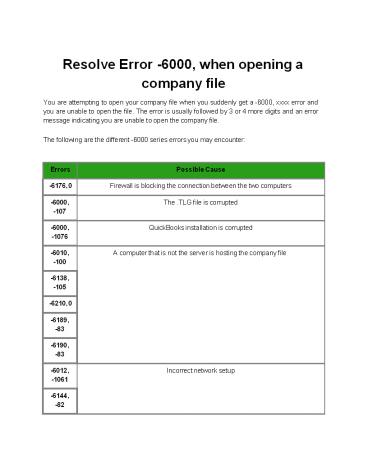
-6000 series errors you may encounter
Errors Possible Cause
-6176, 0 Firewall is blocking the connection between the two computers
-6000, -107 The .TLG file is corrupted
-6000, -1076 QuickBooks installation is corrupted
-6010, -100 A computer that is not the server is hosting the company file
-6138, -105 A computer that is not the server is hosting the company file
-6210, 0 A computer that is not the server is hosting the company file
-6189, -83 A computer that is not the server is hosting the company file
-6190, -83 A computer that is not the server is hosting the company file
-6012, -1061 Incorrect network setup
-6144, -82 Incorrect network setup
2
-6000, -82
-6129, -101 Incorrect folder permission or if the QB Database Server Manager is not working properly
-6190, 816 Another user is logged in to the company file in single user mode. It can also be a mismatch between the transaction log file (.tlg) and the company file (.qbw)
-6190, -85 Another user is logged in to the company file in single user mode. It can also be a mismatch between the transaction log file (.tlg) and the company file (.qbw)
-6190, -82 Another user is logged in to the company file in single user mode. It can also be a mismatch between the transaction log file (.tlg) and the company file (.qbw)
-6000, -832 This error normally occurs when hosting is turned on or the .ND file is not working properly
-6144, -304 When you start QuickBooks or open your company file and sometimes this happens on a sample file
-6190, 1005 When you start QuickBooks or open your company file and sometimes this happens on a sample file
-6189, 1005 When you start QuickBooks or open your company file and sometimes this happens on a sample file
-6000, -305 Incorrect network setup or it could be that the company file is damaged
-6073, -816 Multiple computers are hosting the file or it could be firewall settings are blocking the connection or it could be the file is damaged
-6144,-1 03 The .ND file has an incorrect path to your company file or if the Windows user account used by QuickBooks Database Manager is damaged
-6144, 0 The .ND file has an incorrect path to your company file or if the Windows user account used by QuickBooks Database Manager is damaged
-6120, 0 One of the work stations is hosting the company file or the firewall port 8019 is blocked
-6087, 0 This error occurs when opening the file locally
-6131, 0 This error occurs when opening the file locally
3
- This article lists common -6000 series errors. It
contains basic troubleshooting steps to resolve
the issue. - Important Ensure QuickBooks Desktop is up to
date. It is also recommended to install and run
the QuickBooks File Doctor tool first before
performing any of the following steps. See
QuickBooks File Doctor Fix your company file or
network (US, CA, and UK) If after using the tool
and you still experience the issue, perform the
following solutions in the order shown. - The -6000 errors can happen on both local and
network setup. Select the appropriate setup from
the following options and perform the recommended
steps. - You are opening the file locally
- This means you are opening a file that is saved
on the same computer where QuickBooks is
installed. - Solution 1 Rename the .ND and .TLG files
- The .ND and .TLG files are part of your
QuickBooks files. These are configuration files
that allow QuickBooks to access a company file
in a network or multi-user environment. - If these files are corrupted or damaged, you will
encounter these errors when you open your
QuickBooks files. Renaming these files will not
cause you to lose QuickBooks data. These files
are automatically re-created when you rescan
using the QuickBooks Database Server Manager and
when you open your company file. - Open the folder that contains your company file.
- Find the files with the same file name as your
company files but with extensions .ND and .TLG. - company_file.qbw.nd
- company_file.qbw.tlg
- Right-click each file and select Rename. Add the
word OLD at the end of each file name. Ex
company_file.qbw.nd.OLD - Open QuickBooks again and try to sign in to your
company file. If the same issue occurs, proceed
to solution 2.
4
- b. If the sample file opens, proceed to solution
3. If the sample file returns the same error
message, repair your QuickBooks installation.
See Repair QuickBooks in Windows 8, 7, Vista,
and XP - Solution 3 Copy the QuickBooks file on the
Desktop - By copying the file on the desktop and opening
it, you are testing if there is a problem with
the location of the company file. If the file
opens while it is saved on the desktop, it means
the location is probably damaged or it is "too
deep", it exceeded the file system path
limitation. If the file still did not open after
changing it's location, it is possible the file
is damaged. - Open the folder that contains your company file.
- Find the file with the extension of .QBW.
- Right-click on the file then select Copy. Go to
Desktop, right-click anywhere on the desktop and
then select Paste. - While holding down the control key, open
QuickBooks so you are directed to the No Company
Open window. - Click Open or restore an existing company.
Navigate to the desktop, find the company file
you copied and open. - If you are still getting the same error, please
proceed to solution 4. - Solution 4 Use ADR to restore your backup
- If the company file is damaged, it is recommended
to Recover lost data with QuickBooks Auto Data
Recovery. - Your are opening the file over the network
- This means that you are opening the company file
saved on the server or another computer. - Solution 1 Check if Hosting is turned on, on all
workstation - It is recommended to have one PC/Server to host
the company files.
5
- Open the folder that contains your company file.
- Find the files with the same file name as your
company files but with extensions .ND and .TLG. - Right-click each file and select rename. Add the
word OLD at the end of each file name. Ex
company_file.qbw.nd.OLD - The purpose of Database Server Manager is to host
your QuickBooks company files. It is best to
restart the DBSM and rescan the QuickBooks files
after you rename the .ND and - .TLG files.
- Restart QuickBooks Database Server Manager and
rescan the company file. - Start gt All Programs gt QuickBooks gt QuickBooks
Database Server Manager. - Click the Scan folders tab.
- Click Add folder (if no folders are present).
Otherwise, highlight the folder with the files
and click Scan. - Confirm that the company file in question shows
in the bottom box with heading "QuickBooks
company files found." - Try to open the file again.
- Open QuickBooks again and try to sign in to your
company file. If the same issue occurs, proceed
to solution 3. - Solution 3 Open a sample company file locally
installed on a workstation - By opening a sample company file, you are testing
if the problem possibly lies with your company
file or the QuickBooks application. If a sample
company file does not open and instead returns
an error, it is an indication that the QuickBooks
installation is damaged and should be repaired. - In the No Company Open window, click Open a
Sample File and choose from the list of sample
company files. - If the sample file opens, proceed to solution 4.
If the sample file returns the same error
message, repair your QuickBooks installation.
See Repair QuickBooks in Windows 8, 7, Vista,
and XP - Solution 4 Open the company file locally
6
- Click Open or restore an existing company.
Navigate to the desktop, find the company file
you copied and open. - If you are still getting the same error, please
proceed to solution 5. - Solution 5 Check the folder permission manually
- You may encounter these errors if the folder
where the file is saved does not have the right
permission. Please see Set up folder permissions
to share company files to check the correct
permissions. Try to open your file again. If you
are still getting the same error, proceed to
solution 6 - Solution 6 Configure firewall ports
- You may also encounter errors if your firewall
blocks network access needed for specific
QuickBooks programs or files. It is best to
configure your firewall ports to allow
QuickBooksfiles or programs to access your
network. See Configure Internet security,
personal firewall, and parental control
applications for QuickBooks Desktop
We provide QuickBooks Technical Support for QB
enterprise and other products provided by
Intuit. Users who are being plagued by QuickBooks
issues and errors can reach out to our QB
technical support team. Our experts have proper
certification and go through rigorous training
process. Through their constant edification, they
provide up to date reliable information and
advice. Our 24/ 7 support makes it easier for our
users to avail our services
Recommended

