

The way to Learn how to use Microsoft office word PowerPoint PPT Presentation
Title: The way to Learn how to use Microsoft office word
1
Easy way to Learn the working of Microsoft Office
Word
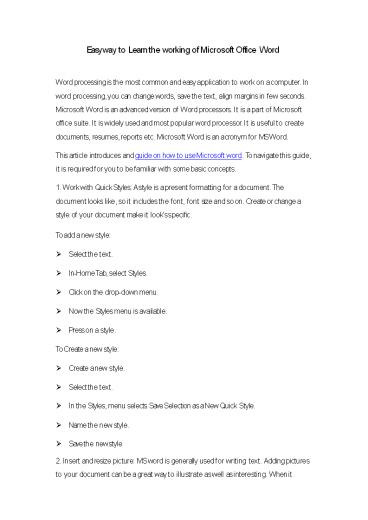
- Word processing is the most common and easy
application to work on a computer. In word
processing, you can change words, save the text,
align margins in few seconds. Microsoft Word is
an advanced version of Word processors. It is a
part of Microsoft office suite. It is widely
used and most popular word processor. It is
useful to create documents, resumes, reports
etc. Microsoft Word is an acronym for MS Word. - This article introduces and guide on how to use
Microsoft word. To navigate this guide, it is
required for you to be familiar with some basic
concepts. - 1. Work with Quick Styles A style is a present
formatting for a document. The document looks
like, so it includes the font, font size and so
on. Create or change a style of your document
make it looks specific. - To add a new style
- Select the text.
- In-Home Tab, select Styles.
- Click on the drop-down menu.
- Now the Styles menu is available.
- Press on a style.
- To Create a new style
- Create a new style.
2
- comes to size image, we are mostly using the drag
and drop sizing handles--those little bubbles
near the corners of an image that we have
selected. That works well as a fast, and its
general method. But you may find when this needs
to be more precise. - For example, if you need just a part of an image?
- To insert a picture
- Go to the main menu, select Insert.
- In the Insert menu, click on Picture.
- A new window will open. Select the picture file.
- Click Insert.
- To Resize or Crop a picture
- Double click on the picture.
- A new format menu will appear.
3
- Insert a table of contents
- In the main menu select References.
- In the References menu select Table of Contents.
- Click on Table of Contents.
- A drop-down menu will appear. In the drop-down
menu - Click on one of the predefined styles to insert a
Table of Contents. - Click on Insert Table of Contents
- A new window will appear.
- Select options for Page Numbers.
- Select the style for the tab leaders.
4
- In the Compare Documents window
- Locate the Original document.
- Locate the Revised document.
- Insert a label to indicate the differences.
- Select the elements to compare.
- Select where changes should be displayed.
- 6. Add Citations and References Many times essay
or report writers are required to insert
citation or bibliography into documents. A
citation is used to tell the reader where the
information came from and a reference gives the
details about the source of what kind of source
it is. The references are listed at the end of
the report. - To create a citation source
- Go to main menu Select References.
- In the References menu, go to Citations
Bibliography.
5
- In the References menu, go to Citations
Bibliography. - Select a Citation Style.
- Click on Bibliography.
- In the Drop-down menu select Bibliography.
- The bibliography will appear in the document.
- 7. Save documents as PDF PDF is a great file
document. Follow the steps to save documents as
PDF. - Click on the Office Button.
- A drop-down menu will appear.
- Click on Save As.
- A side menu will appear.
Recommended

