

Resolve Microsoft Visual C++ Error Library Runtime Error PowerPoint PPT Presentation
Title: Resolve Microsoft Visual C++ Error Library Runtime Error
1
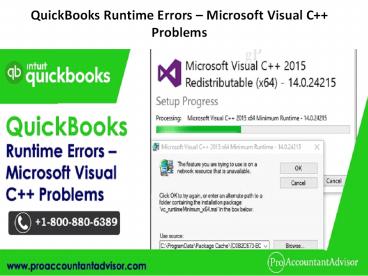
QuickBooks Runtime Errors Microsoft Visual C
Problems
2
4 Methods to Fix QuickBooks Runtime Error
QuickBooks is an advanced accounting software
that is used by millions of business owners
across the world. The software is excellent in
keeping records, preparing for taxes, paying
employees, generating invoices and other
countless business-related tasks. But despite
being a topnotch software it sometimes receives
some errors. Users may receive errors while
installing it, updating or upgrading it or while
using it. One common error that you may face
while opening or using QB is Runtime error. This
error may be frustrating as its not very simple
to fix it. However, here are some troubleshooting
steps that you may perform to do away with this
error.
3
- Solution 1 Restart Your Computer
You may get rid of many of the QuickBooks and
computer errors by just restarting your computer.
You can click the windows key on your keyboard
and select shut down or restart button. You can
also press the power button to turn your computer
off and then back on. Allow your PC to reboot and
launch QuickBooks again.
- Solution 2 Run QuickBooks With No Data
The makers of QuickBooks -Intuit recommends its
users to launch QB with no data to fix Runtime
error.
- Press CtrlAltDel simultaneously and check
if QBW.EXE file is running. - In case you notice QBW.EXE listed, click the file
and then select end process to stop it. - Now, right-click on the QuickBooks icon and press
and hold Ctrl and click Open while keeping the
key down. - This will allow you access to QuickBooks without
data being connected to the account.
- Solution 3 Close All Open Windows
Another useful method to fix Runtime error is to
close all open windows.
4
- Press CtrlAltDel again and check if QBW.EXE is
running on your computer. - Make sure that QBW.EXE is not running and then
right-click on the QuickBooks icon - Now press Ctrl key on the keyboard and hold that
down and click Open. - Next, press and hold the Alt key on the keyboard
from the No Company Open Screen. - Keep the Alt key pressed and click open to launch
your QB company file. - This step generally opens your company file.
Though, it keeps any other windows from opening.
- Solution 4 Rename QBW.INI File
- If none of the above solutions work, then you
should try to rename the QBW.INI file in order to
get rid of the Runtime error. - Use Windows file search tool to find the file on
your computer (or locate that by manually
navigating to the location of the file). - After locating QBW.INI, do a right-click and
select rename. - QuickBooks recommends changing the name of
the file to .OLD extension, thus your file should
be QBW.OLD. - Now save the changes by pressing Enter on the
keyboard.
Go ahead and launch QuickBooks like you normally
would after renaming the QBW file. Hopefully, the
new file extension will resolve the Runtime
error, allowing you to once again access and use
your QuickBooks software.
5
We hope that this quick guide helped you fix your
QuickBooks Runtime Errors. If the error still
exists or you face any other QuickBooks-related
issue, you can call our QuickBooks Error
Support team by dialing 1(800)880-6389.
Recommended

