

Malwarebytes Unable to Connect the Service PowerPoint PPT Presentation
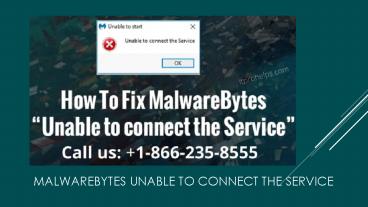
Title: Malwarebytes Unable to Connect the Service
1
Malwarebytes Unable to Connect the Service
2
- We are living in a world of computers. The Number
of people who use computers has increased at a
high pace and the number is still increasing. But
we all want to be safe while using our computers.
- Safety should be our priority whenever we are
using any device. There are a lot of threats
associated with our computers. People use several
tools to defend their PCs against the threats but
no anti-virus software can grant us full security
unless we are aware of all kinds of threats.
Malwarebytes is a tool to deal with the malicious
applications that are installed on our PC. - malwarebytes unable to connect the service -
itprohelps
www.itprohelps.com
3
Make Sure That All The Services Of Malwarebytes
Are Working Properly
- Press Start Key R on your PC. Type services.msc
in the Run Utility box that has opened on your
screen. (check the box before the option start as
administrator) - Find the service named Malwarebytes in the list
of services. Right-click on this option and
select Properties from the context menu. - Find the Startup option and set it to Automatic.
- Check the status of this service, if the status
is not Running then click on Start.
www.itprohelps.com
4
Reinstall Malwarebytes on your PC
- Click on the start icon that is available at the
bottom-left corner of the screen. - Type regedit in the search area. Locate the ID
and key of your malwarebytes by navigating to the
following path HKEY_LOCAL_MACHINES\SOFTWARE\malw
arebytes (for 32-bit operating system) - HKEY_LOCAL_MACHINES\SOFTWARE\Wow6432Node\malwareby
tes (for 64-bit operating system) - After you have got the ID and key of the
Malwarebytes, open the Malwarebytes on your PC
and then, click on My Account. - After the page of your account has opened, click
on the button deactivate. - Now, open settings and then, select Advanced
Settings.
www.itprohelps.com
5
- In the Advanced Settings window, uncheck the box
before the option Enable Self Protection Module. - Close this program and download mbam-clean.exe.
(you can download it from the official site of
Malwarebytes). - After the download is finished, close all
programs and disable your anti-virus. - Click on the mbam-clean.exe file to run this
program. Then, you will be asked to reboot your
PC, do it as per the instructions. - When your PC is ready to work, download the
latest version of Malwarebytes from the official
website and click on the install button initiate
the installation.
www.itprohelps.com
6
Thanks!
- Any questions?
- itprohelps.com
- Tollfree no 1-866-235-8555
Recommended

