

HP Color Laserjet Pro M225dw Setup PowerPoint PPT Presentation
Title: HP Color Laserjet Pro M225dw Setup
1
HP Color Laserjet Pro M225dw Setup Do you want
to set up your newly-bought HP Color LaserJet Pro
M225dw printer at your home? We will help you
install this printer at the location you prefer.
You simply have to follow the instructions we
provide in this article to have an error-free
setup procedure.
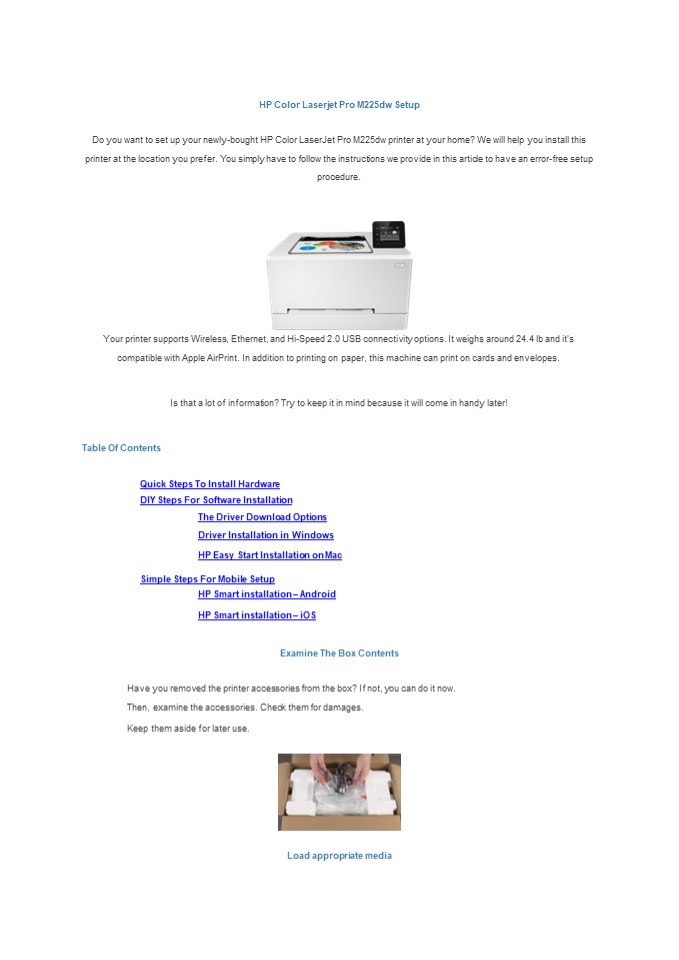
Your printer supports Wireless, Ethernet, and
Hi-Speed 2.0 USB connectivity options. It weighs
around 24.4 lb and its compatible with Apple
AirPrint. In addition to printing on paper, this
machine can print on cards and envelopes.
Is that a lot of information? Try to keep it in
mind because it will come in handy later!
Table Of Contents Quick Steps To Install
Hardware DIY Steps For Software Installation The
Driver Download Options Driver Installation in
Windows HP Easy Start Installation on
Mac Simple Steps For Mobile Setup HP Smart
installation Android HP Smart installation
iOS
Examine The Box Contents Have you removed the
printer accessories from the box? If not, you can
do it now. Then, examine the accessories. Check
them for damages. Keep them aside for later use.
Load appropriate media
2
Open the main paper tray and move the paper
guides to their extreme positions. Get hold of a
stack of plain paper. Insert the stack into the
tray. Adjust the paper guides against the stack.
Take the priority input tray. Place this on the
main tray. Switch On The Printer Got the power
cable? Just connect one of the cables ends to
the printers back. Done? Thats wonderful! Go
on and plug the cables opposite end into a power
socket thats nearby. On your printer, press the
Power button. Your HP Color LaserJet Pro M225dw
printer will now initialize and calibrate itself.
Just wait patiently for it to become idle.
Configure The Preferences
Once the calibration process is over, you can see
the language selection menu on your printer
display. Pick the desired language and choose
Yes. Similarly, select your region. The Driver
Download Options The buttons for downloading
the driver for Windows and HP Easy Start for Mac
are provided below.
You simply have to click the button for your
Operating System. And when thats done, the
driver for that OS will get downloaded to your
computer. By doing this, you can save
considerable time in getting the driver.
3
Windows
Driver for HP LaserJet Pro M225dw
Mac
Driver for HP LaserJet Pro M225dw
Driver Installation In Windows By now, you must
have the driver for your Windows OS downloaded to
your computer. So, the very next step is to
install this driver. How can you do this? Just
carry out the instructions that are provided
here! The whole procedure is a breeze if you
stick to these steps.
On your computer, access the Downloads folder.
HP Easy Start Installation On Mac Using HP Easy
Start, you can enjoy using all your HP printers
features. You can also connect your computer and
your printer by utilizing HP Easy Start. As the
name indicates, you can have a very easy start
using this software.
Have you now obtained HP Easy Start by clicking
the download button for the same in the previous
part of this page? Fantastic! Now, follow the
steps provided below to install HP Easy Start and
set up your printer.
HP Smart Installation Android In this section,
well walk you through the steps to install HP
Smart on your Android phone/device. Such a device
will have the Google Play Store from which you
can get HP Smart. Following are the detailed
instructions. Read on to know more!
4
Go to the Google Play Store on the device. Do you
see a search bar at the top? Yes? Good! Here,
enter hp smart. When you see the HP Smart icon,
tap the Install button next to it. It will take
a few seconds for the app to get completely
installed. Isnt it a very simple procedure? We
believe so! Now that you got HP Smart on your
Android phone/device, lets continue with the
steps below. Make sure youve connected the
device to the Wi-Fi network youre utilizing
now. Launch HP Smart. Tap Continue on its Welcome
screen. As you perform the on-screen steps,
youll get to the Set Up a New Printer
button. Are you able to view this button?
Congrats! It means youve finished the above
steps correctly. Now, hang on there and continue
with the following instructions. So, when you
find the Set Up a New Printer button, tap it. Go
ahead with the steps on your screen. When you do
that, youll reach the stage where HP Color
LaserJet Pro M225dw (your printer name) is
displayed. Now, choose this name. In a few
moments, youll be requested to input your
network password. So, get it and enter it in the
space given for the same. Select Continue. The
HP Smart app is as smart as it sounds! It will
surely let you know when your printer is
connected to your Wi-Fi network. Tap Continue.
Have A Magical Printing Experience! Printingis
the preservative of all arts.
Using the procedures given on this web page,
https//123-hp.chat/hp-color-laserjet-pro-m225dw-s
etup/youll be able to set up your printer,
install the necessary software, and get prepared
for printing. We understand that there is a lot
of information here. Nevertheless, if you finish
the steps in the given order without skipping
any, you can reach the goals of your printing
task. If you are troubled by any printer blues,
kindly dont hesitate to get in touch with our
technical experts. You can quickly do this using
the call option provided on this page. They will
happily assist you in solving your printer
problems by guiding you through easy
troubleshooting methods. As a result, you will
get to enjoy a magical printing experience!
Call us - 1 909-751-0101
Recommended

