

Step-by-Step Tutorial: Setting up an SEO-Friendly Website with Umbraco CMS PowerPoint PPT Presentation
Title: Step-by-Step Tutorial: Setting up an SEO-Friendly Website with Umbraco CMS
1
- Step-by-Step Tutorial Setting up an SEO-Friendly
Website with Umbraco CMS - Search Engine Optimization must be addressed as
it has become an essential part of most online
businesses worldwide. It is relevant for those
who depend on organic traffic from search
engines such as Google, Yahoo, Bing, etc. And
everybody nowadays wants to be on the top of
Google search results. So, what if you prefer
using Umbraco CMS, and your goal is to make your
Umbraco website SEO-friendly? - This post will give you a step-by-step tutorial
to set up an SEO-friendly website with Umbraco
CMS. So, lets get started! - Step 1 Install Umbraco CMS and Configure Basic
Settings - You can create Umbraco CMS like a normal MVC
project. - Here are the steps-
- You need to create a New blank project in MVC.
- Add the Umbraco CMS package as per your
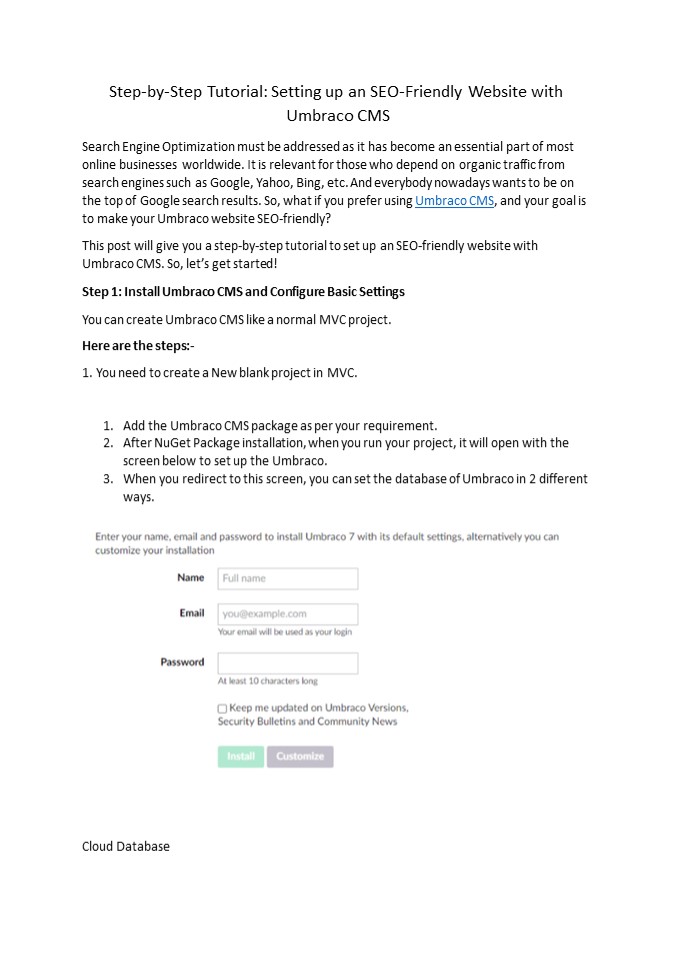
requirement. - After NuGet Package installation, when you run
your project, it will open with the screen below
to set up the Umbraco. - When you redirect to this screen, you can set the
database of Umbraco in 2 different ways.
Cloud Database
2
- Your Required Database like SQL Server, SQL
Client, My SQL, etc... - Cloud Database-
- To create Cloud Database, click the Installation
button after filling in the required data. It
Will Generate a new file in your folder
structure with .Sdf extension. - After installing, you will get the Umbraco
Backoffice screen for your project. - To set up an Umbraco database in a local server,
click the Customize button. - You are redirected to the screen below.
Now, click on continue.
3
Select your database server from here. E.g., If
you select Microsoft SQL Server, below is the
screen where you need to set the data.
4
On this page, you can set your required database
server data and click on continue. After clicking
Install, you will get the Umbraco Backoffice
screen for your project. These are the general
steps for Umbraco installation in
Framework. After the installation, you access the
Umbraco back-office by appending "/umbraco" to
your website's URL. There are so many features
available to create an SEO-friendly site. Here
are some features with steps that will help you
to understand the features of an SEO- friendly
site. Step-2 Robots.txt file in Umbraco- It's
very easy to create robots.txt in Umbraco, which
you can edit from Backoffice. You can achieve
this natively without installing any packages or
writing custom code with these simple
steps Create a "txt file" document type in the
Backoffice. Write the text file
template. Configure Umbraco to recognize the
"robots.txt" URL.
5
Step-3 Tracking scripts in Umbraco Create a
Google Analytics Account Obtain Tracking
ID Insert the Tracking Code in your site. Step-4
HTTPS support in Umbraco Set Use Https
configuration option You can force HTTPS for all
Backoffice communications by setting the UseHttps
key in appSettings to true. Redirect traffic in
code. The .NET5 practice to manage traffic in
code is by adding this HttpsRedirectionMiddleware
to your Startup.cs pipeline. Also, add
app.UseHttpsRedirection() before the call
to app.UseUmbraco() in the Configure
method. Redirect traffic on IIS Once you start
using HTTPS for your Umbraco website, redirect
all requests to your site to HTTPS using an IIS
rewrite rule. Step-5 XML Sitemaps in Umbraco 1.
Create the XML sitemap Document Type
- Create XmlSiteMapSettings Composition
- Once you have added sitemap options to all
Document Types used, you can add content pages
to the website along with Relative priority and
change frequency options. - Add composition to all relevant Document Types
- You can start creating content pages in the
Content Section just by adding the
XmlSiteMapSetting composition to all Document
Types used.
6
- Building the XmlSiteMap.cshtml template
- To display the XML schema on the sitemap, you
need to create an XmlSiteMap template. - Filter the sitemap content
- The next step is to use various parameters to
filter the content on the sitemap. - Step-6 Title tags and meta descriptions
- Having your search results properly displayed in
the SERP can make or break your SEO efforts. - Top rankings in the search results mean
absolutely nothing if the user doesnt click to
view your page. - Step-7 Content headers
7
This feature is also a classic one that most have
come to simply expect from a CMS. But that
doesnt make it any less important to mention
here. As Ive already covered, web crawlers don't
see your content like users do. Instead, they
look at the code and the HTML that your code is
(most often) rendered through. Conclusion Undoub
tedly, SEO significantly impacts organic search
results for your Umbraco site during the project
development phase. So, if you plan to take your
website to new heights, apply the
recommendations from our guide or consult a
top-notch Umbraco Development Company like The
One Technologies that can help you test and check
your project before going live. If you hire our
dedicated Umbraco Development Services, we
guarantee you to convert your ideas into reality
and deliver the expected outcomes.
Recommended

