

bookworm central eWallet for onsite book fairs PowerPoint PPT Presentation
Title: bookworm central eWallet for onsite book fairs
1
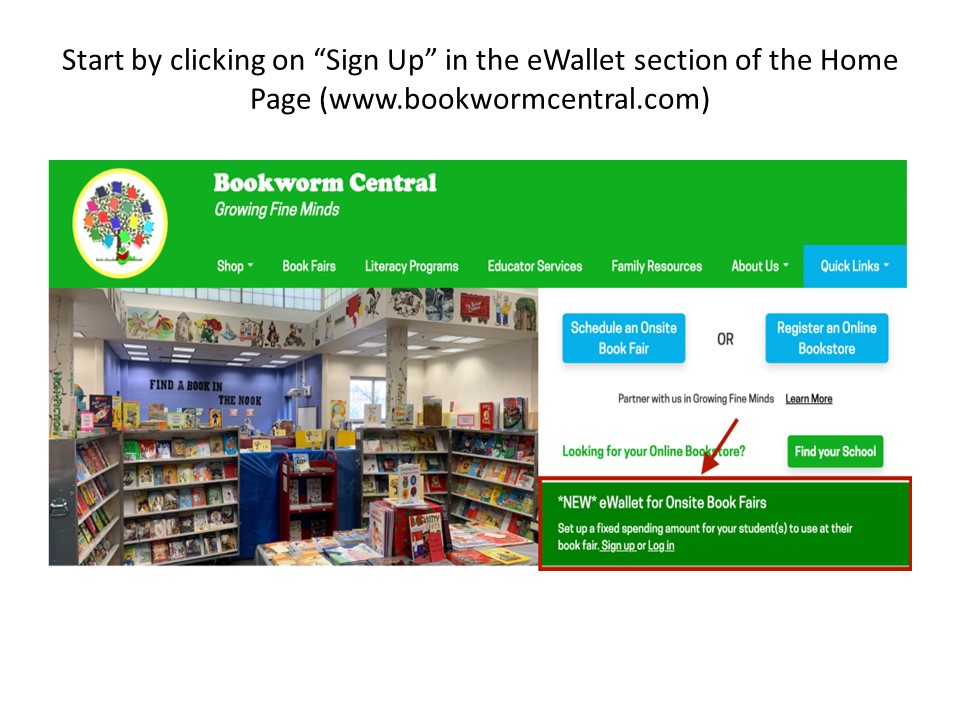
Start by clicking on Sign Up in the eWallet
section of the Home Page (www.bookwormcentral.com)
2
Sign up by clicking on Register
3
Fill out your name, phone, email, and create a
password.
4
Add a student to the account, by filling out the
student name, school, grade, teacher, and the
maximum amount to spend. Click Add Student.
5
Click Add/Update Credit Card Details.
6
Enter your credit card information and click
Pay to continue.
Your card will NOT be charged until a purchase
has been made. Only the amount purchased will be
charged, not the maximum amount.
7
If you have multiple students, repeat steps 3-5
until all students are added.
- When finished, click on Print eWallet.
8
Print out the eWallet to give to your student.
Repeat for each student.
9
Other Features
History allows you to see purchase history
10
Unlink Credit Card when you no longer wish to
have your credit card tied to an account, you can
unlink it from a student account.
11
You can add the maximum amount of a students
eWallet by going to Edit Information and
entering how much you want to add to their
account. Click Update when finished.
12
- https//www.bookwormbmaps.com/eWallet/
Recommended

