

Creating Visual Appeal: Effective Animation Techniques for Your Slides PowerPoint PPT Presentation
Title: Creating Visual Appeal: Effective Animation Techniques for Your Slides
1
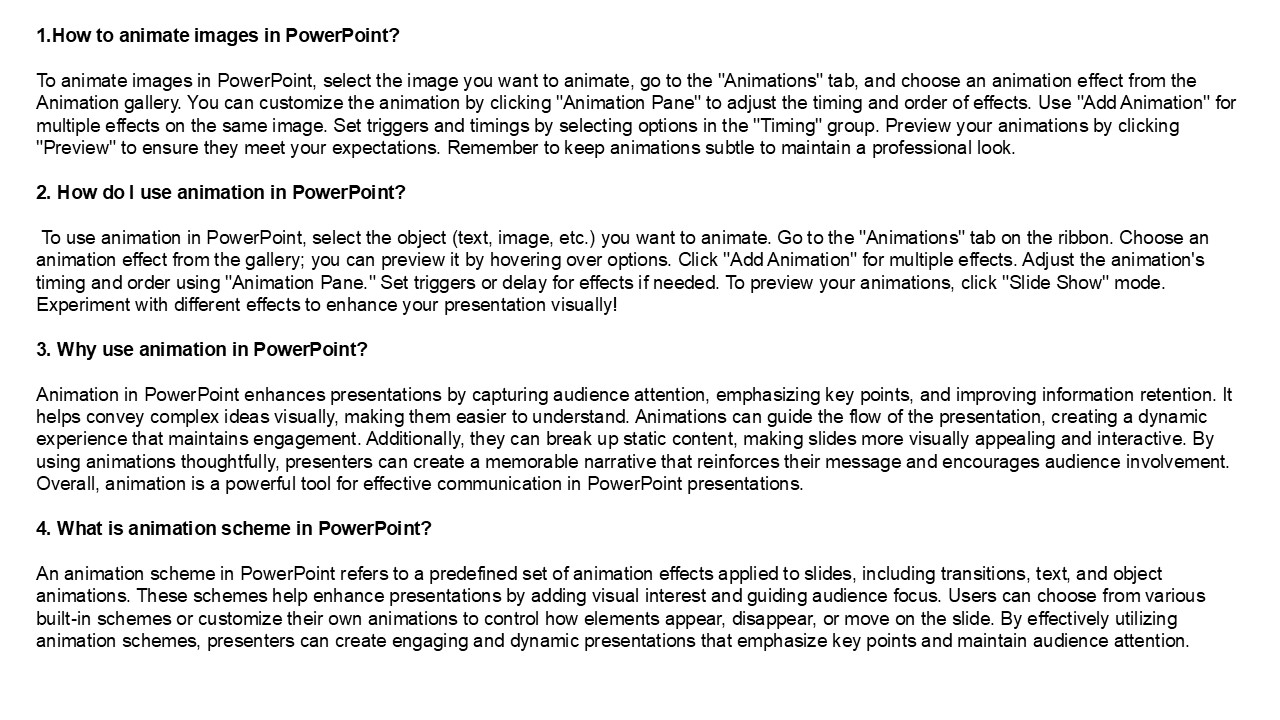
- 1.How to animate images in PowerPoint?
- To animate images in PowerPoint, select the image
you want to animate, go to the "Animations" tab,
and choose an animation effect from the Animation
gallery. You can customize the animation by
clicking "Animation Pane" to adjust the timing
and order of effects. Use "Add Animation" for
multiple effects on the same image. Set triggers
and timings by selecting options in the "Timing"
group. Preview your animations by clicking
"Preview" to ensure they meet your expectations.
Remember to keep animations subtle to maintain a
professional look. - 2. How do I use animation in PowerPoint?
- To use animation in PowerPoint, select the
object (text, image, etc.) you want to animate.
Go to the "Animations" tab on the ribbon. Choose
an animation effect from the gallery you can
preview it by hovering over options. Click "Add
Animation" for multiple effects. Adjust the
animation's timing and order using "Animation
Pane." Set triggers or delay for effects if
needed. To preview your animations, click "Slide
Show" mode. Experiment with different effects to
enhance your presentation visually! - 3. Why use animation in PowerPoint?
- Animation in PowerPoint enhances presentations by
capturing audience attention, emphasizing key
points, and improving information retention. It
helps convey complex ideas visually, making them
easier to understand. Animations can guide the
flow of the presentation, creating a dynamic
experience that maintains engagement.
Additionally, they can break up static content,
making slides more visually appealing and
interactive. By using animations thoughtfully,
presenters can create a memorable narrative that
reinforces their message and encourages audience
involvement. Overall, animation is a powerful
tool for effective communication in PowerPoint
presentations. - 4. What is animation scheme in PowerPoint?
- An animation scheme in PowerPoint refers to a
predefined set of animation effects applied to
slides, including transitions, text, and object
animations. These schemes help enhance
presentations by adding visual interest and
guiding audience focus. Users can choose from
various built-in schemes or customize their own
animations to control how elements appear,
disappear, or move on the slide. By effectively
utilizing animation schemes, presenters can
create engaging and dynamic presentations that
emphasize key points and maintain audience
attention.
2
5. What are the examples of animation in
PowerPoint? PowerPoint offers various animation
examples, including entrance effects (e.g., Fade,
Fly In), emphasis effects (e.g., Grow/Shrink,
Spin), exit effects (e.g., Fade Out, Fly Out),
and motion paths (custom paths for objects). You
can animate text, images, shapes, and charts to
enhance presentations. Additionally, slide
transitions like Push, Wipe, and Zoom create
dynamic shifts between slides. Users can
customize timing, duration, and order of
animations to effectively capture audience
attention and convey information.
Visit VS Website See more Blog
Recommended

