

Transforming Google Slides into Engaging Animated GIFs: A Step-by-Step Guide PowerPoint PPT Presentation
Title: Transforming Google Slides into Engaging Animated GIFs: A Step-by-Step Guide
1
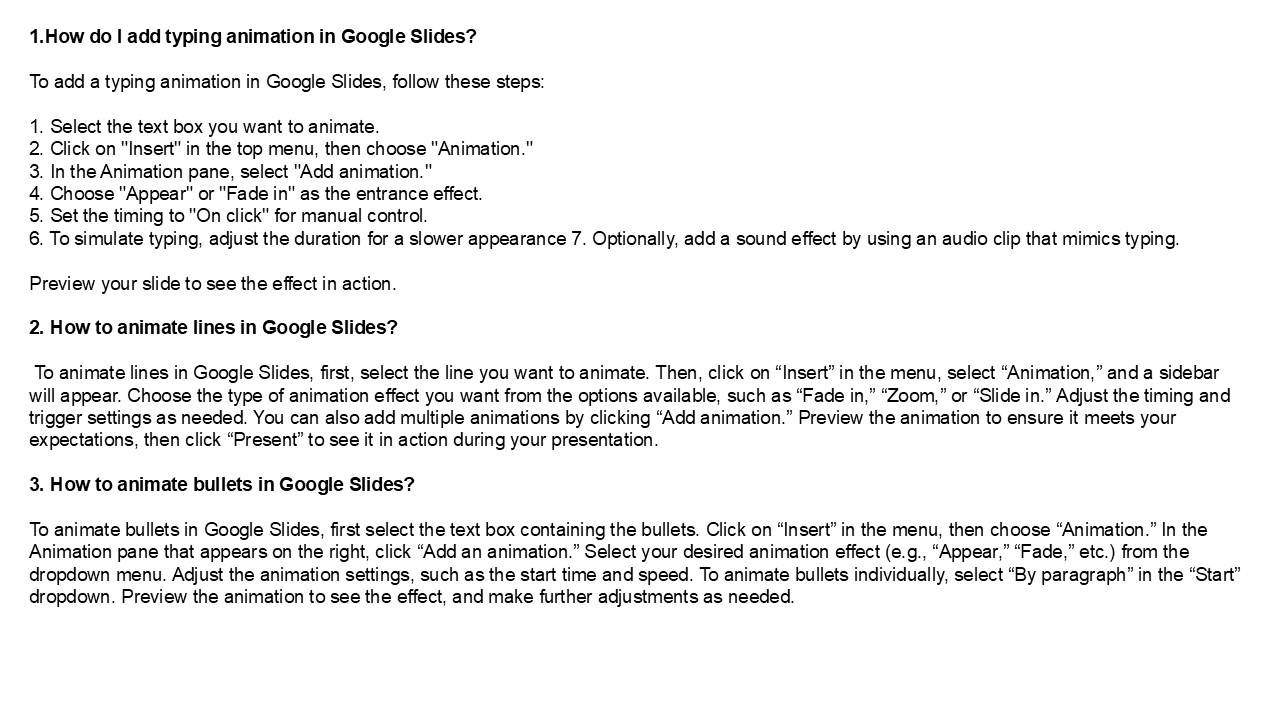
- 1.How do I add typing animation in Google Slides?
- To add a typing animation in Google Slides,
follow these steps - 1. Select the text box you want to animate.
- 2. Click on "Insert" in the top menu, then choose
"Animation." - 3. In the Animation pane, select "Add animation."
- 4. Choose "Appear" or "Fade in" as the entrance
effect. - 5. Set the timing to "On click" for manual
control. - 6. To simulate typing, adjust the duration for a
slower appearance 7. Optionally, add a sound
effect by using an audio clip that mimics typing. - Preview your slide to see the effect in action.
- 2. How to animate lines in Google Slides?
- To animate lines in Google Slides, first, select
the line you want to animate. Then, click on
Insert in the menu, select Animation, and a
sidebar will appear. Choose the type of animation
effect you want from the options available, such
as Fade in, Zoom, or Slide in. Adjust the
timing and trigger settings as needed. You can
also add multiple animations by clicking Add
animation. Preview the animation to ensure it
meets your expectations, then click Present to
see it in action during your presentation. - 3. How to animate bullets in Google Slides?
2
4. How to do complex animations in Google Slides?
To create complex animations in Google Slides,
start by selecting the object you want to
animate. Click on "Insert" gt "Animation" to open
the animation pane. You can choose from entrance,
emphasis, and exit effects. Adjust the timing and
order of animations using the "On click" or
"After previous" options. For advanced effects,
layer multiple animations on the same object, and
use the "Motion path" option for custom movement.
Experiment with delays and duration to enhance
the effect. Preview your presentation frequently
to refine the animations until they fit your
vision. 5. How do you add sound to a Google
slide animation? To add sound to a Google
Slides animation, first, upload your audio file
to Google Drive. Then, in your slide, select the
object you want to animate. Click on "Insert" in
the menu, then choose "Audio" and select your
uploaded file. After inserting, click on the
audio icon to open options. Set playback
settings, such as "Automatically" or "On click,"
and adjust the volume. Note that audio will play
during the slide, not directly tied to individual
animations within the slide. Test the slide to
ensure the audio plays as intended. Visit VS
Website See more Blog
Recommended

