

Key Functions for Efficient Editing in Photoshop PowerPoint PPT Presentation
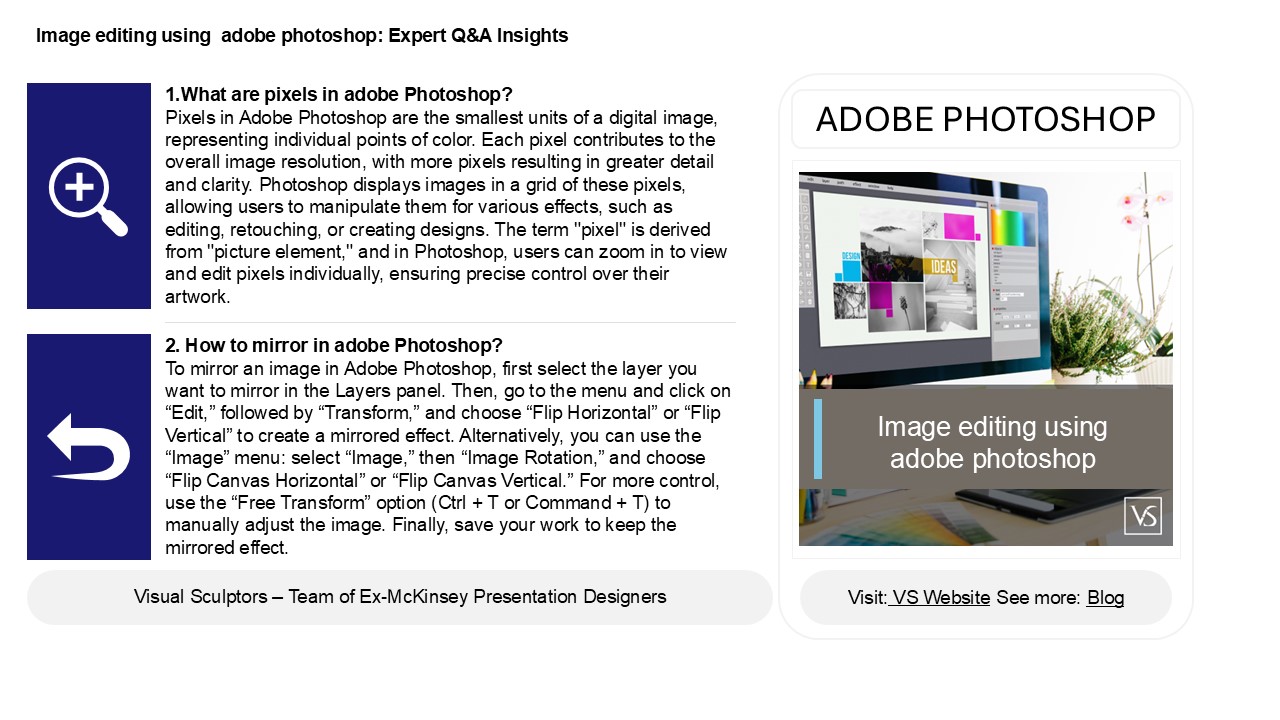
Title: Key Functions for Efficient Editing in Photoshop
1
Image editing using adobe photoshop Expert QA
Insights
1.What are pixels in adobe Photoshop? Pixels in
Adobe Photoshop are the smallest units of a
digital image, representing individual points of
color. Each pixel contributes to the overall
image resolution, with more pixels resulting in
greater detail and clarity. Photoshop displays
images in a grid of these pixels, allowing users
to manipulate them for various effects, such as
editing, retouching, or creating designs. The
term "pixel" is derived from "picture element,"
and in Photoshop, users can zoom in to view and
edit pixels individually, ensuring precise
control over their artwork.
ADOBE PHOTOSHOP
2. How to mirror in adobe Photoshop? To mirror
an image in Adobe Photoshop, first select the
layer you want to mirror in the Layers panel.
Then, go to the menu and click on Edit,
followed by Transform, and choose Flip
Horizontal or Flip Vertical to create a
mirrored effect. Alternatively, you can use the
Image menu select Image, then Image
Rotation, and choose Flip Canvas Horizontal or
Flip Canvas Vertical. For more control, use the
Free Transform option (Ctrl T or Command T)
to manually adjust the image. Finally, save your
work to keep the mirrored effect.
2
Image editing using adobe photoshop Expert QA
Insights
3. How to blend in adobe Photoshop? To blend in
Adobe Photoshop, use the following techniques 1.
Layer Masks Add a layer mask to your layer
and use a soft brush with low opacity to paint
with black to hide parts of the layer and white
to reveal them. 2. Opacity Adjust the
layer's opacity to make it more transparent. 3.
Blending Modes Experiment with blending
modes (found in the layers panel) to change how
layers interact with each other. 4. Gradient
Tool Use the gradient tool for smooth
transitions between colors or layers. 5.
Filters Apply filters like Gaussian Blur for
softer edges.
4. How do I remove the background in adobe
Photoshop? To remove the background in Adobe
Photoshop, open your image and select the "Quick
Selection Tool" or "Magic Wand Tool" from the
toolbar. Click on the background area you want to
remove. For more precision, use "Select and Mask"
to refine the edges. Once the background is
selected, press the "Delete" key or create a mask
by clicking the "Add Layer Mask" button in the
Layers panel. Adjust as needed, then save your
image in the desired format.
5. How to contrast in adobe Photoshop? To adjust
contrast in Adobe Photoshop, use the following
steps 1. Open your image in Photoshop. 2. Go to
the "Image" menu, select "Adjustments," then
choose "Brightness/Contrast." 3. In the dialog
box, move the "Contrast" slider to the right to
increase contrast or to the left to decrease
it. 4. You can also use the "Curves" or "Levels"
adjustments for more control over contrast. 5.
Once satisfied, click "OK" to apply the changes.
Save your image to retain the adjustments.
Recommended

