

Advanced Formatting Techniques in Microsoft Word: Elevating Your Document Presentation PowerPoint PPT Presentation
Title: Advanced Formatting Techniques in Microsoft Word: Elevating Your Document Presentation
1
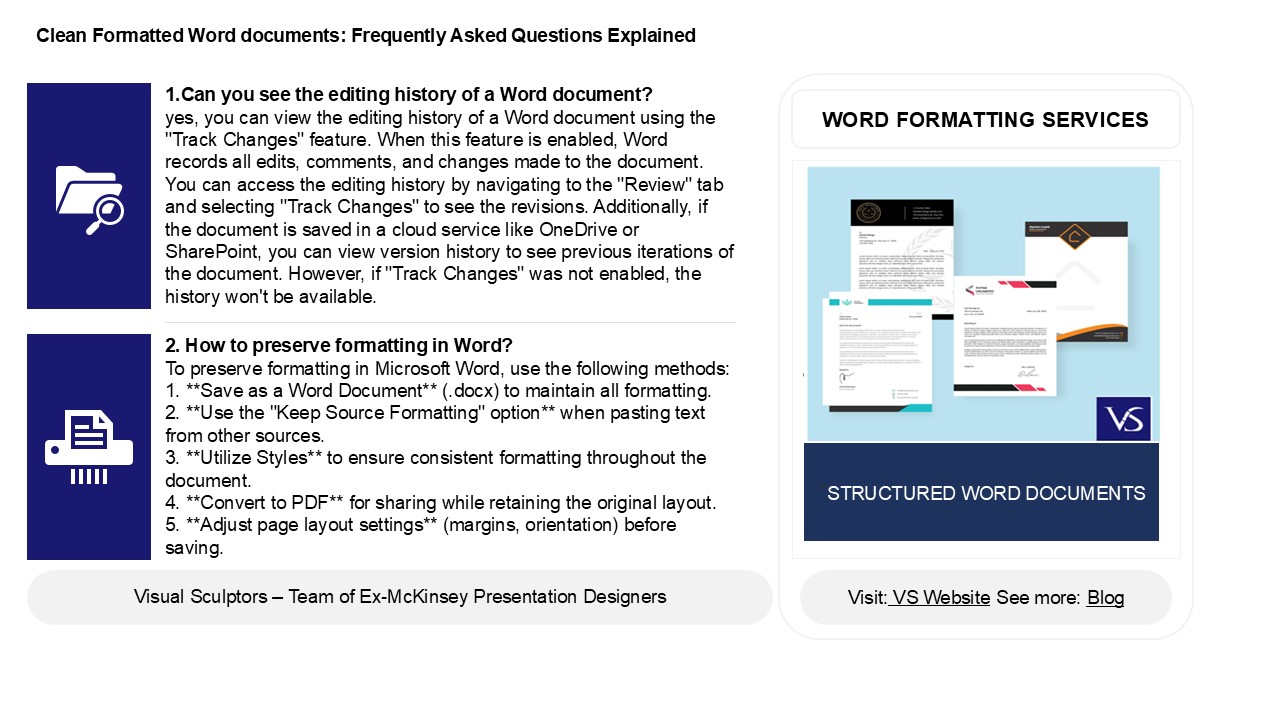
Clean Formatted Word documents Frequently Asked
Questions Explained
1.Can you see the editing history of a Word
document? yes, you can view the editing
history of a Word document using the "Track
Changes" feature. When this feature is enabled,
Word records all edits, comments, and changes
made to the document. You can access the editing
history by navigating to the "Review" tab and
selecting "Track Changes" to see the revisions.
Additionally, if the document is saved in a cloud
service like OneDrive or SharePoint, you can view
version history to see previous iterations of the
document. However, if "Track Changes" was not
enabled, the history won't be available.
WORD FORMATTING SERVICES
2. How to preserve formatting in Word? To
preserve formatting in Microsoft Word, use the
following methods 1. Save as a Word
Document (.docx) to maintain all formatting. 2.
Use the "Keep Source Formatting" option when
pasting text from other sources. 3. Utilize
Styles to ensure consistent formatting
throughout the document. 4. Convert to PDF
for sharing while retaining the original
layout. 5. Adjust page layout settings
(margins, orientation) before saving.
2
Clean Formatted Word documents Frequently Asked
Questions Explained
3. How do I manage formatting in Word? To manage
formatting in Word, use the Home tab for basic
options like font style, size, and color. Utilize
the Styles section for consistent headings and
text formatting. For paragraphs, adjust
alignment, line spacing, and indentation in the
Paragraph group. Use the Format Painter to copy
formatting between text. Access the Page Layout
tab to manage margins, orientation, and page
size. To apply more advanced formatting, explore
the Design tab for themes and color schemes.
Lastly, use the Review tab for track changes and
comments if collaborating with others. Always
save your document regularly to avoid losing
changes.
4. How do I remove a formatted table in Word? To
remove a formatted table in Word, click anywhere
inside the table. Then, go to the "Table Tools"
section, which appears in the ribbon. Click on
the "Layout" tab and select "Delete" in the "Rows
Columns" group. Choose "Delete Table" from the
dropdown menu. Alternatively, you can simply
select the table by clicking the table handle
(the small square at the top left corner) and
press the "Delete" key on your keyboard. This
will remove the entire table along with its
formatting.
5. What is special formatting in Word? Special
formatting in Word refers to the application of
various styles and attributes to text and
paragraphs to enhance presentation and
readability. This includes features like bold,
italics, underline, font size, color, and
alignment. It also encompasses paragraph settings
like line spacing, indentation, and bullet
points. Additionally, Word allows the use of
styles, which are predefined sets of formatting
options, and can include headers, footers, and
page numbers. Utilizing special formatting
effectively helps organize content, making it
visually appealing and easier for readers to
navigate and understand.
Recommended

