

Eliminating Hidden Metadata: Best Practices for Polished Word Documents PowerPoint PPT Presentation
Title: Eliminating Hidden Metadata: Best Practices for Polished Word Documents
1
Clean Formatted Word documents Top Questions
Answered
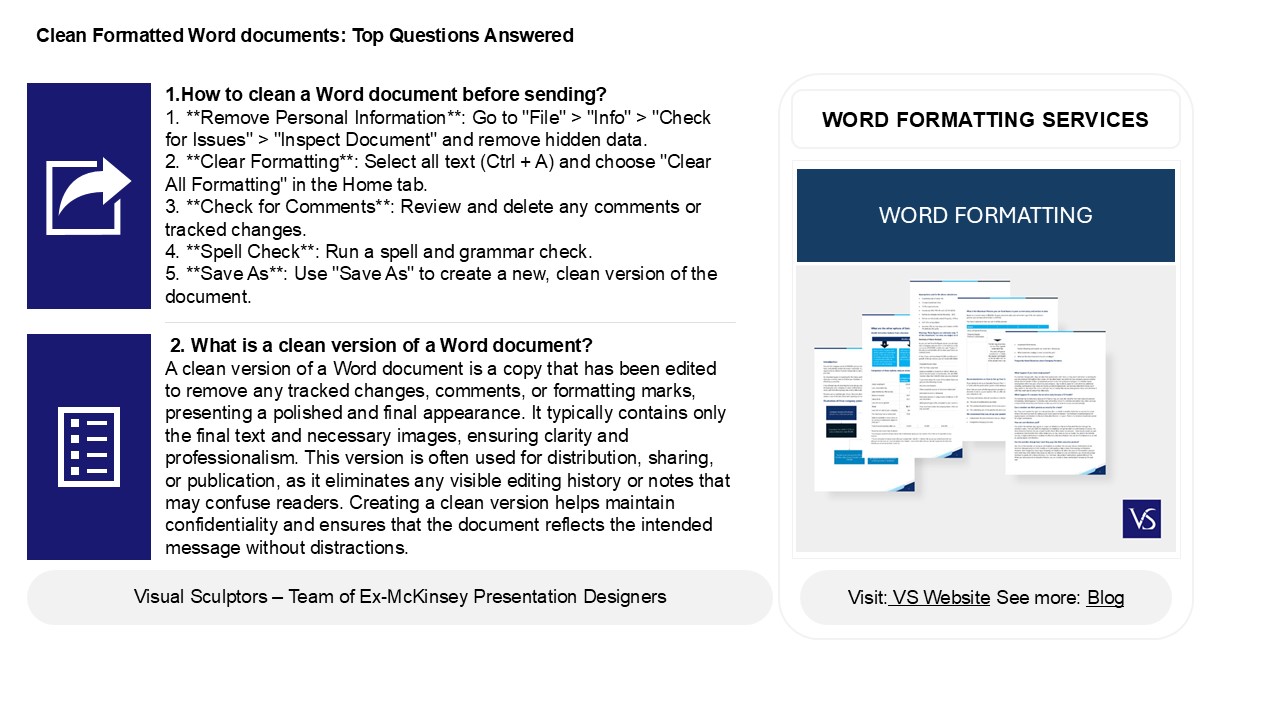
1.How to clean a Word document before sending?
1. Remove Personal Information Go to "File"
gt "Info" gt "Check for Issues" gt "Inspect
Document" and remove hidden data. 2. Clear
Formatting Select all text (Ctrl A) and
choose "Clear All Formatting" in the Home tab. 3.
Check for Comments Review and delete any
comments or tracked changes. 4. Spell Check
Run a spell and grammar check. 5. Save As
Use "Save As" to create a new, clean version of
the document.
WORD FORMATTING SERVICES
2. What is a clean version of a Word document?
A clean version of a Word document is a copy
that has been edited to remove any tracked
changes, comments, or formatting marks,
presenting a polished and final appearance. It
typically contains only the final text and
necessary images, ensuring clarity and
professionalism. This version is often used for
distribution, sharing, or publication, as it
eliminates any visible editing history or notes
that may confuse readers. Creating a clean
version helps maintain confidentiality and
ensures that the document reflects the intended
message without distractions.
2
Clean Formatted Word documents Top Questions
Answered
3. How do I remove bad formatting in Word? To
remove bad formatting in Word, first highlight
the text you want to fix. Then, use the "Clear
All Formatting" button (an eraser icon) on the
Home tab in the Font group. Alternatively, you
can press Ctrl Spacebar to revert to the
default formatting. For more control, select
Styles in the Home tab to apply a consistent
style. If issues persist, consider copying the
text to Notepad and then pasting it back into
Word to strip all formatting. Finally, adjust the
formatting as needed using the Font and Paragraph
settings.
4. How do I fix a broken Format in Word? To fix
a broken format in Word, try these steps 1.
Clear Formatting Select the text and click
on "Clear All Formatting" in the Home tab (the
eraser icon). 2. Use Styles Apply a
consistent style (e.g., heading, normal) from the
Styles group. 3. Check Page Layout Ensure
correct margins and spacing under the Layout
tab. 4. Inspect Paragraph Settings
Right-click the paragraph, choose Paragraph, and
check indentation and spacing. 5. Reapply
Formatting If needed, manually reapply your
desired formatting.
5. How do I reset Word to original format? To
reset Microsoft Word to its original format,
follow these steps 1. Open Word and go to
"File" gt "Options." 2. In the "General" tab,
click "Reset" under "Personalize your copy of
Microsoft Office." 3. Close Word, then press
Windows R, type appdata\Microsoft\Templates
, and delete the "Normal.dotm" file. 4. Restart
Word, and it will recreate the default template.
For a full reset, consider repairing the
installation through "Control Panel" gt "Programs"
gt "Microsoft Office" gt "Change" gt "Repair." This
restores Word to its original settings and fixes
any issues.
Recommended

