

Creative Workarounds for Table Rotation in Google Slides PowerPoint PPT Presentation
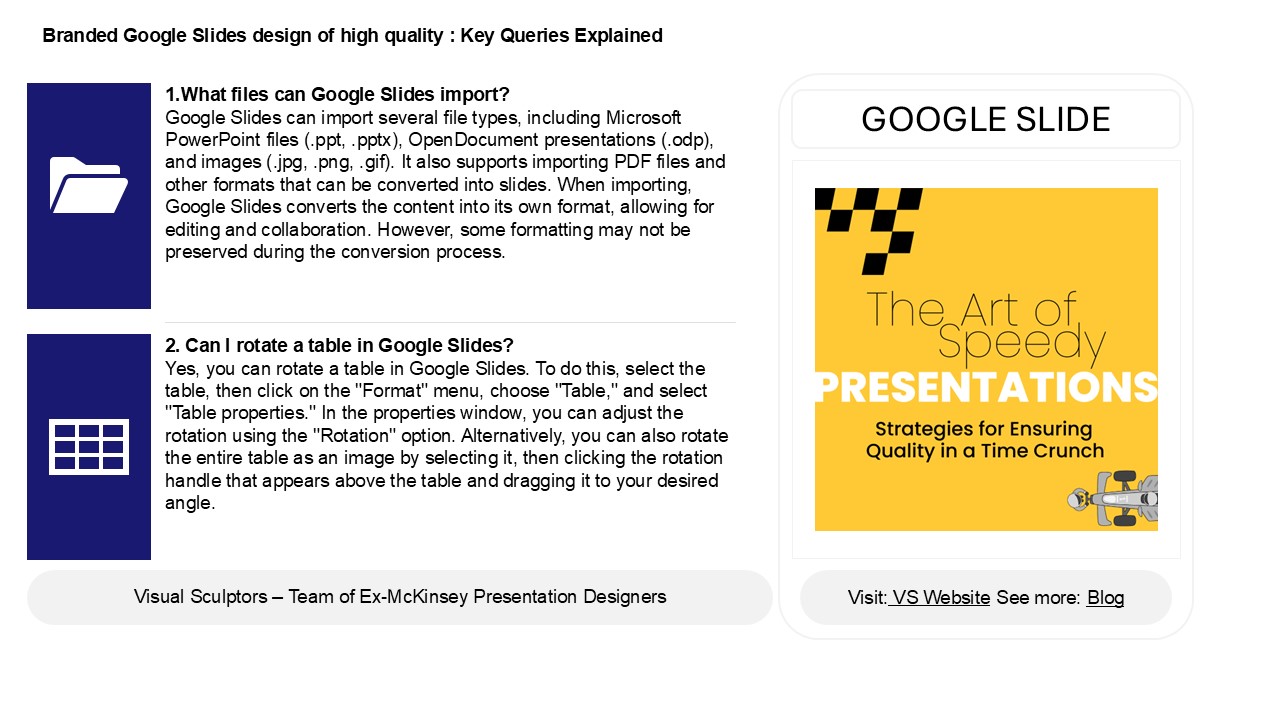
Title: Creative Workarounds for Table Rotation in Google Slides
1
Branded Google Slides design of high quality
Key Queries Explained
1.What files can Google Slides import? Google
Slides can import several file types, including
Microsoft PowerPoint files (.ppt, .pptx),
OpenDocument presentations (.odp), and images
(.jpg, .png, .gif). It also supports importing
PDF files and other formats that can be converted
into slides. When importing, Google Slides
converts the content into its own format,
allowing for editing and collaboration. However,
some formatting may not be preserved during the
conversion process.
GOOGLE SLIDE
2. Can I rotate a table in Google Slides? Yes,
you can rotate a table in Google Slides. To do
this, select the table, then click on the
"Format" menu, choose "Table," and select "Table
properties." In the properties window, you can
adjust the rotation using the "Rotation" option.
Alternatively, you can also rotate the entire
table as an image by selecting it, then clicking
the rotation handle that appears above the table
and dragging it to your desired angle.
2
Branded Google Slides design of high quality
Key Queries Explained
3. Can I turn a Google slide vertical? Yes, you
can turn a Google Slide vertical by changing the
slide's dimensions. To do this, go to the "File"
menu, select "Page setup," then choose "Custom."
Enter the desired width and height (for a
vertical slide, make the height greater than the
width) and click "Apply." Your slide will now be
in a vertical orientation.
4. How to do a flow chart in Google Slides? To
create a flow chart in Google Slides, open a new
or existing presentation. Click on "Insert" in
the top menu, then select "Diagram." Choose
"Flowchart" from the options provided. Customize
the flowchart by selecting different shapes and
connectors. You can add text by clicking inside
each shape. Adjust colors and sizes using the
formatting options in the toolbar. For more
complex designs, use "Insert" gt "Shape" to
manually add shapes and lines. Arrange them as
needed to complete your flowchart. Save your
changes, and your flowchart will be ready for
presentation!
5. Does Google Slides have infographics? Google
Slides does not have built-in infographic
templates, but users can create infographics
using its tools, shapes, icons, and charts.
Additionally, users can import images or
templates from external sources. Various
third-party websites offer infographic templates
that can be downloaded and edited in Google
Slides, allowing for effective visual
presentations.
Recommended

