

Identifying and Resolving Hidden Formatting Issues in Word PowerPoint PPT Presentation
Title: Identifying and Resolving Hidden Formatting Issues in Word
1
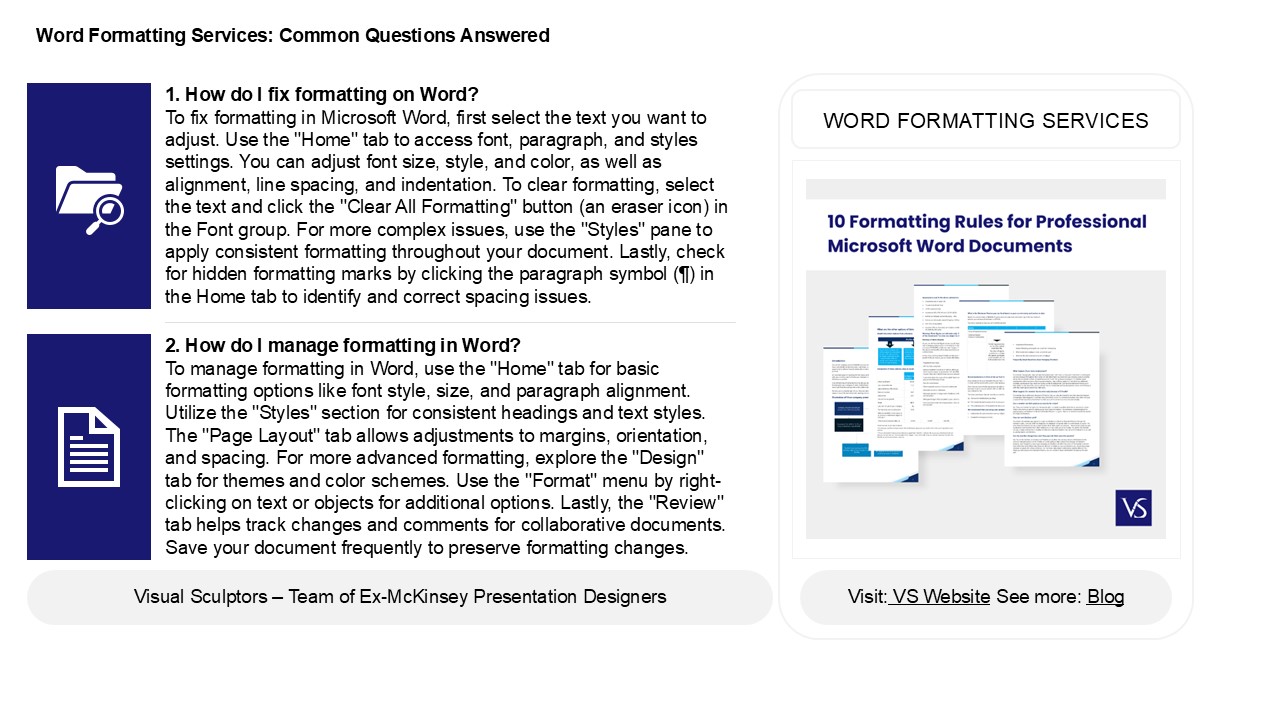
Word Formatting Services Common Questions
Answered
1. How do I fix formatting on Word? To fix
formatting in Microsoft Word, first select the
text you want to adjust. Use the "Home" tab to
access font, paragraph, and styles settings. You
can adjust font size, style, and color, as well
as alignment, line spacing, and indentation. To
clear formatting, select the text and click the
"Clear All Formatting" button (an eraser icon) in
the Font group. For more complex issues, use the
"Styles" pane to apply consistent formatting
throughout your document. Lastly, check for
hidden formatting marks by clicking the paragraph
symbol () in the Home tab to identify and
correct spacing issues.
WORD FORMATTING SERVICES
2. How do I manage formatting in Word? To manage
formatting in Word, use the "Home" tab for basic
formatting options like font style, size, and
paragraph alignment. Utilize the "Styles" section
for consistent headings and text styles. The
"Page Layout" tab allows adjustments to margins,
orientation, and spacing. For more advanced
formatting, explore the "Design" tab for themes
and color schemes. Use the "Format" menu by
right-clicking on text or objects for additional
options. Lastly, the "Review" tab helps track
changes and comments for collaborative documents.
Save your document frequently to preserve
formatting changes.
2
Word Formatting Services Common Questions
Answered
3. How do I fix space formatting in Word? To fix
space formatting in Word, first highlight the
text. Then, go to the "Home" tab and click on the
"Line and Paragraph Spacing" button. Select your
desired spacing option, such as "1.0" for single
spacing. For paragraph spacing, click on "Line
and Paragraph Spacing," then "Line Spacing
Options," where you can adjust before and after
paragraph spacing. To remove extra spaces, check
for hidden formatting marks by clicking the
paragraph symbol () in the "Home" tab. Finally,
ensure that "Don't add space between paragraphs
of the same style" is checked under paragraph
settings.
4. How do I turn on formatting in Word? To turn
on formatting in Microsoft Word, go to the "Home"
tab on the ribbon. Click on the "" icon
(Show/Hide ) in the Paragraph group. This will
display formatting marks such as spaces,
paragraph breaks, and tabs. For more specific
formatting options, select text and use the Font
and Paragraph groups to adjust styles, sizes, and
alignments. You can also access additional
formatting tools by right-clicking on the
selected text and choosing "Font" or "Paragraph."
5. How do I stop Word formatting? To stop Word
formatting, you can clear existing formatting by
selecting the text and pressing "Ctrl Space" or
clicking the "Clear All Formatting" button in the
Home tab. To prevent automatic formatting, go to
"File" gt "Options" gt "Proofing" gt "AutoCorrect
Options" and uncheck unwanted formatting options.
You can also use the "Plain Text" format when
pasting text to avoid carrying over formatting.
Finally, consider using a different text editor
for simpler formatting needs.
Recommended

