

Best Practices for Creating Impactful Themes with Google Slides' Theme Builder PowerPoint PPT Presentation
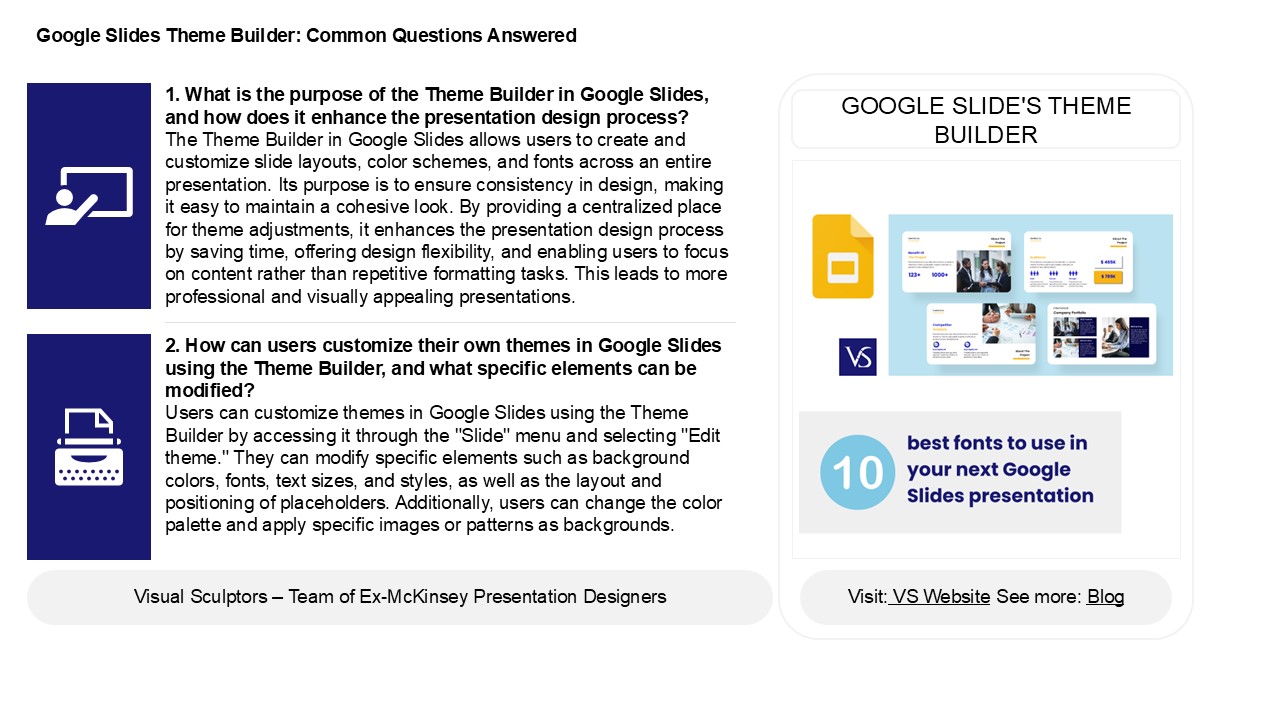
Title: Best Practices for Creating Impactful Themes with Google Slides' Theme Builder
1
Google Slides Theme Builder Common Questions
Answered
1. What is the purpose of the Theme Builder in
Google Slides, and how does it enhance the
presentation design process? The Theme Builder in
Google Slides allows users to create and
customize slide layouts, color schemes, and fonts
across an entire presentation. Its purpose is to
ensure consistency in design, making it easy to
maintain a cohesive look. By providing a
centralized place for theme adjustments, it
enhances the presentation design process by
saving time, offering design flexibility, and
enabling users to focus on content rather than
repetitive formatting tasks. This leads to more
professional and visually appealing presentations.
GOOGLE SLIDE'S THEME BUILDER
2. How can users customize their own themes in
Google Slides using the Theme Builder, and what
specific elements can be modified? Users can
customize themes in Google Slides using the Theme
Builder by accessing it through the "Slide" menu
and selecting "Edit theme." They can modify
specific elements such as background colors,
fonts, text sizes, and styles, as well as the
layout and positioning of placeholders.
Additionally, users can change the color palette
and apply specific images or patterns as
backgrounds.
2
Google Slides Theme Builder Common Questions
Answered
3. What are the steps to apply a custom theme
created in the Theme Builder to an existing
Google Slides presentation? 1. Open your Google
Slides presentation.2. Click on Slide in the
top menu, then select Change theme.3. In the
theme panel, click on Import theme at the
bottom.4. Choose the presentation that contains
your custom theme.5. Select the desired theme
and click Import.
4. How does the Theme Builder facilitate
consistency across different slides, and why is
this important for effective presentations? The
Theme Builder ensures consistency across slides
by allowing users to define a uniform set of
design elements, such as colors, fonts, and
layouts, which automatically apply to all slides
within a presentation. This consistency is
crucial for effective presentations as it
enhances visual coherence, making the content
easier to follow and understand. It also
reinforces branding and professionalism, helping
to maintain the audience's focus on the message
rather than distracting them with varied designs.
Ultimately, a cohesive presentation fosters
better engagement and retention of information.
5. What are some best practices for creating
visually appealing themes in Google Slides using
the Theme Builder? To create visually appealing
themes in Google Slides using the Theme Builder,
start by selecting a cohesive color palette that
aligns with your message. Choose complementary
fonts for titles and body text to ensure
readability. Incorporate consistent layout styles
for slides, including margins and alignments. Use
high-quality images and graphics that enhance the
content. Utilize whitespace effectively to avoid
clutter. Add custom slide layouts for varied
content types and incorporate visual elements
like icons or shapes for emphasis. Finally,
preview your theme across different slides to
ensure uniformity and visual appeal throughout
the presentation.
Recommended

