

Building Interactive Dashboards in Tableau: A Step-by-Step Guide PowerPoint PPT Presentation
Title: Building Interactive Dashboards in Tableau: A Step-by-Step Guide
1
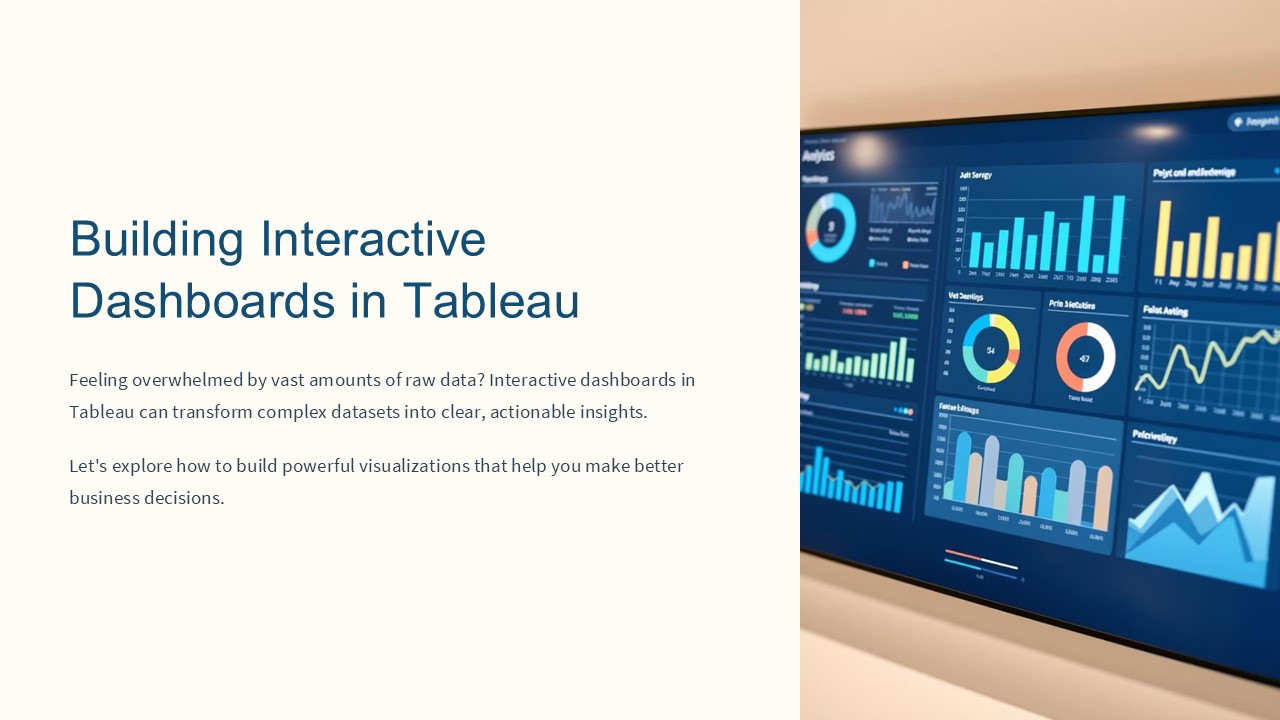
Building Interactive Dashboards in Tableau
Feeling overwhelmed by vast amounts of raw data?
Interactive dashboards in Tableau can transform
complex datasets into clear, actionable insights.
Let's explore how to build powerful
visualizations that help you make better business
decisions.
2
Why Use Tableau Dashboards?
Data Consolidation
Real-Time Monitoring
Brings reports from various sources into a single
view.
Provides instant access to business metrics.
Better Decision Making
Customizable Analysis
Presents data in interactive form for deeper
analysis.
Offers flexibility to explore data in multiple
ways.
3
Types of Tableau Dashboards
Strategic Dashboards
Help achieve long-term goals through historical
data analysis.
Operational Dashboards
Provide high-level overview of business health
and KPIs.
Track real-time performance of daily business
activities.
Analytical Dashboards
Includes metrics like website traffic, inventory,
and sales.
Track ongoing performance to identify trends and
opportunities.
Used for making projections and improvement
strategies.
4
Step 1 Preparing Your Data
Launch Tableau Desktop
Open the application and get ready to connect to
your data source.
Connect to Data
Select your data source (Excel, SQL, Google
Sheets, etc.).
Choose Tables
Select required tables and preview the dataset.
Clean Your Data
Handle null values, filter irrelevant data, and
rename fields.
5
Step 2 Loading and Connecting Data
Data Types
Advanced Modeling
- Strings (text values)
- Pivot Columns
- Numbers (whole and decimal)
- Create Calculated Fields
- Dates Times
- Use Level of Detail Expressions
- Geographical Data
Optimization Tips
- Reduce unnecessary calculations
- Use Extract Mode for large datasets
6
Step 3 Creating Essential Visualizations
Bar Charts
Line Graphs
Heatmaps
Maps
Compare categorical values across different
dimensions.
Display trends and patterns over specific time
periods.
Highlight high and low-performance areas with
color intensity.
Visualize geospatial data like consumption per
state.
7
Step 4 Adding Interactivity
Add Filters
- Click drop-down menu on any field
- Select "Show Filter"
- Choose filter type (Dropdown, Range, Multi-select)
- Apply to multiple sheets if needed
Create Parameters
Allow users to input values that change
visualizations dynamically.
Add Objects
Include buttons, images, and web pages to enhance
functionality.
8
Benefits of Interactive Dashboards
100
24/7
Data Visibility
Availability
Complete view of all business metrics in one
place.
Constant access to real-time business
intelligence.
60
Faster Decisions
Reduction in time needed to analyze and act on
data.
Transform your business decision-making with
powerful Tableau dashboards that bring your data
to life.
9
contact usinfo_at_augmentedtechlabs.com
91 79491 86335https//www.augmentedtechlabs.com/
Recommended

