

Expansion Slots and Bus Types PowerPoint PPT Presentation
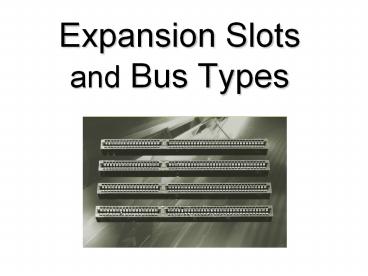
Title: Expansion Slots and Bus Types
1
Expansion Slots and Bus Types
2
Installing Expansion Cards
3
Steps to Installing Expansion Cards
- Knowledge
- Physical installation
- Device drivers
- Verify
4
Step 1 Knowledge
- Learn about the device by reading the
documentation - Do you have device drivers for your operating
system (Windows, Linux, etc.) - Does the device work with your operating system?
- Check the Windows Marketplace for Windows
- http//testedproducts.windowsmarketplace.com
- Devices on this list have been certified by
Microsoft to work with Windows
5
Step 2 Physical Installation
- Install the card
- Hold the card on its edges dont touch
connectors or the components on the card - Insert at the proper angle
- Use the connection screw which helps
to ground the card and prevent card
creep - Use proper ESD procedures
6
Step 2 Physical Installation
7
Step 3 Device Drivers
- All devices require BIOS, which for expansion
cards is almost always a device driver - Devices will come with device drivers on the
installation CD - It is recommended that you get the latest drivers
from the manufacturers web site - Which one first?
- Driver or Device?
- Usually device first
- If USB or Firewire, driver first
8
Removing the Driver
- Alt-click on the device in Device Manager and
choose Update Driver - Choose Uninstall to remove the current driver
- May also be able to uninstall via Add/Remove
Programs
9
Unsigned Drivers
- Manufacturers submit drivers and devices to
Microsoft for testing - Once tested and verified, they are digitally
signed - Unsigned drivers give a warning
- Drivers that havent been tested may still work
finedespite the scary message
10
Installing the New Driver
- Use the CD that came with the device
- May install extra unwanted programs
- Use the Add Hardware Wizard in Control Panel
11
Driver Rollback
- Alt-click the device in Device Manager and choose
Properties, then the Driver tab - If youve installed the wrong driver you can
rollback to the previous driver
12
Step 4 Verify
- Check the device properties in Device Manager to
verify it is working properly
13
Troubleshooting Expansion Cards
IT Technician
CompTIA AIT Technician
14
Device Manager
- Check for the device in Device Manager
- Alt-click My Computer?Properties ?Hardware tab
?Device Manager - If the device does not show up in Device Manager
- Run the Add/Remove Hardware Wizard in Control
Panel - If it still doesnt show up, the device is
damaged or it is a legacy device whose system
resources are not configured properly
15
Device Manager Symbols
- Black ! on a yellow circle
- Device is missing, Windows doesnt recognize it,
or a device driver problem - Device may still work
- Red X
- Disabled device enable it
- Damaged device double check work
- Device will not work
- Blue I on a white background
- System resources were configured manually
- Only seen on non-ACPI systems
- Information only - device will work
16
System resources
- Device Manager allows you to see what resources
are being used by your devices - Alt-click My Computer?Properties?Hardware tab
?Device Manager button
17
CMOS Mismatch
- Some time two different device may use the same
resource . When this happened? - When this happened CMOS mismatch message will be
displayed at booting. - The solution is to access and change system
resource.
Recommended

