

Ergonomics training session for -high volume data entry operators PowerPoint PPT Presentation
1 / 50
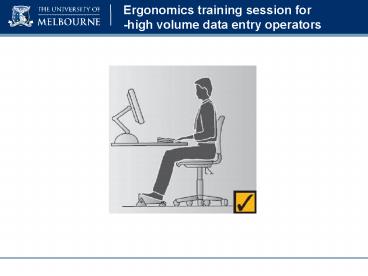
Title: Ergonomics training session for -high volume data entry operators
1
Ergonomics training session for -high volume
data entry operators
2
Training Objectives
- Identify the musculoskeletal hazards associated
with high data entry (manual handling) work - Provide information on best practice workstation
set up and office environment to reduce the
impact of high data entry work - 3. Provide information on best practice work
methods to reduce the impact of high data entry
work
3
OHS Obligations and responsibilities
- Providing a healthy and safe work place for
everyone means - Complying with OHS Legislation
- OHS Act 2004 OHS Regulations 2007
- Having OHS systems in place
- A method/system of managing workplace hazards
controlling risks, audited for compliance. - Internal reporting systems for incidents,
injuries, near misses - Incident reports
THEMIS http//www.themis.unimelb.edu.au/ - Dedicated OHS advisory staff to provide support
- Taking reasonable care, working safely, following
procedures, completing training.
4
What is Manual handling?
- ...any activity requiring exertion of human
force including - Lifting / Lowering
- Carrying / Holding / Restraining
- Pushing / Pulling
- Throwing / Catching / Hitting / Striking
- Repetitive tasks (packing, picking, sorting,
filing, typing, assembly, shelving, writing) - Using hand tools, equipment
- Most tasks we undertake involve some level of
force exertion or manual handling. - Manual handling in the office can be defined as
- any task that involves repetitive or sustained
forces, movements or postures. - Not all manual handling is hazardous!
5
Most common Office Work injuries
- WorkSafe Victoria - Injury Hotspots Office Work
- Highlights the most common injuries associated
with working in an office. - Further information https//www4.worksafe.vic.
gov.au/worksafe/hotspots/office_hotspot.html
6
What are high volume data injuries?
- Musculoskeletal disorders (MSDs). These arise
from the cumulative effect of regular strain,
load, speed, and/or force on the soft tissues of
the body. Injuries can affect
many parts of the body but typically - Neck and back
- Shoulders, arms, forearms
- Wrists, hands, fingers and thumbs
- 2. Psychological /stress related conditions
which can arise from high work loads, deadlines
7
Hazardous manual handling
- Factors that can increase your risk of injury
- Duration and frequency (workload)
- In an office environment undertaking continuous
data entry for more than 30 minutes at a time or
2 hours per shift - Environment
- Unsuitable working conditions e.g.
- Poorly designed workstation, chair
- Poor light, thermal comfort
- Inadequate space, clutter
- Individual factors
- Stress, anxiety, muscle tension
- Insufficient rest breaks
- Poor organisation, planning
- Poor health and fitness
8
Repetitive or sustained awkward posture,
movements, forces
Repetitive More than 2 x per minute or
Sustained More than 60 seconds at a time
9
High data entry evidence
- Key findings from 22 ergonomic research studies
on impact of high data entry on body health
reveal - Overwhelmingly periodic brief rest breaks
throughout the work day reduce musculoskeletal
discomfort - Maintaining neutral spine (S shape) enables
optimal postural muscle function and minimises
mechanical stress - Keeping the shoulder and elbow of the mouse
hand close to the body reduces the muscle work in
the shoulder and neck area
10
How do we manage musculoskeletal injuries?
The 4 Steps...
1. Identify hazardous work tasks that you perform
2. Assess whether the task is risky - i.e.
likely to cause an injury
3. Control eliminate or reduce the risk
4. Review the control measures to see if they
are effective
11
The Musculoskeletal System
- In order to demonstrate the impact of high data
entry manual handling on the body, a brief
overview of the structure and function of the
musculoskeletal system follows
12
The Musculoskeletal System
- The Musculoskeletal System is made up of the
- Skeleton/spine
- Muscles
- Joints
- Tendons
- Ligaments
- All these are potentially subject to stress at
work
13
The spine
- The spine is configured in an S shape to
permit maximum mobility, balance, flexibility and
stress absorption. We refer to this as neutral
spine. - 3 notable spinal curves create the S shape
- Neck curves inwards
- Middle back curves outwards
- Lower back curves inwards
- Maintaining these curves (neutral spine )
optimises spine health and function
14
Back health
- Any deviation away from neutral spine increases
the stress and load on the spinal structures - The further away from neutral e.g. slouching,
bending or twisting, the greater the load - Prolonged poor postures can accelerate wear and
tear on the spine and the surrounding soft
tissues
15
Sitting Postures
- Bad Posture X
- Good Posture v
16
Back/neck discomfort
- Back/neck discomfort can occur at a computer
workstation because of - Unsuitable physical environment/
equipment/furniture- poor design, dimensions,
fit - Poor workstation set up and organisation- body
trying to adapt and fit to the workstation rather
than the workstation fitting the body. - Prolonged sitting without regular changes in
posture - - loads the discs, slows down nutrition to the
discs - Poor postures - slouching and leaning, places
uneven loads and strains on the discs, joints,
ligaments and muscles - Weak core muscles
- -spine sloppy not stabilised
17
Muscles
- The main framework of the body (skeleton) is
covered by muscles, whose function is to permit
movement, exert power and maintain posture.
18
Muscle work
- Static muscle work
- Occurs when body parts are held stationary and
muscles are held static e.g. gripping mouse,
phone. - Muscles contract-but no movement results.
Fatiguing, not sustainable for long periods - Dynamic muscle work
- Rhythmic action between contracting and relaxing
muscles e.g. walking, swinging arms - Muscles contract and body parts move
- More sustainable, more favourable for the body
19
Static muscle work
- When the muscles are under static load
- Blood supply including oxygen and nutrients
needed by muscles and soft tissues is restricted.
- Waste product (lactic acid) which can cause a
muscle burning sensation) is not flushed away - Fatigue, discomfort and soft tissue damage can
eventuate - Prolonged computer data entry can involve
prolonged static muscle loading.
20
Joints and ligaments
- Joints and ligaments (like the spine) are subject
- to extra stress when overloaded, over
stretched or when awkward postures are adopted. - Joints and ligaments can be best protected by
- Maintaining neutral, balanced joint positions
- Deviation away from neutral amplifies forces on
joints and tissues
21
Wrist posture
Keeping the wrist neutral and aligned with the
arm greatly reduces the stress and strain on all
the surrounding soft tissues. Unnatural bent
wrist positions can lead to conditions such as
carpal tunnel syndrome
22
Tendon health
- Tendons connect muscles to bone.
- If the action of pulling the muscle is highly
repetitive a tendon can become inflamed and
movement can become painful and restricted - This is a musculoskeletal disorder often referred
to as tendonitis or repetitive strain injury
(RSI) - It can be associated with high volume mouse or
keyboard use particularly if technique is poor - Ensuring optimal postures and taking regular
stretching breaks greatly lowers the risk of
developing tendonitis
23
What is best practice
- Fitting your workstation to you
24
OR ELSEterrible things may happen!!
25
Desk dimensions and layout
- Fixed height desks should be 700-720mm for most
workers - Desktop thickness 33mm maximum
- Desks should be 750 mm minimum deep (front to
back) to accommodate monitor/s and focal length - Space under the desk for legs should enable
- 450mm forward clearance at knee
- 600mm at feet, 400mm either
- side of navel.
- Office chair should swivel from
- side to side without obstruction
26
Staff task chair set up
- Staff task chairs should have adequate
adjustability to - support an optimal sitting posture
- The chair should be adjusted so that the
- back support is slightly reclined and comfortably
fits the lumbar curve about a fist gap should
exist between the back support and the seat pan - seat pan is approximately horizontal and
comfortably accommodates thigh length. When
sitting back in the chair there should be 2-3
fingers width between the front edge of the seat
and the back of the knee. - desk height is approximately in line with the
navel - footrests are generally required for users under
172cm ( 57) sitting at a standard fixed height
(720mm) desk
27
Best practice computer seated posture
- Ears in vertical alignment with shoulders
- Spine neutral (S shape)
- Hips slightly higher than knees
- Feet supported on floor or footrest
- Shoulders relaxed and symmetrical
- Elbows slightly higher than wrists
- Elbows in near vertical alignment with shoulders
- Wrists neutral (slightly bent up )
- Fingers relaxed with joints slightly curled (not
stiff)
28
Best practice computer seated posture
Elbows should be slightly higher than your
wrists when operating keys/mouse
The back support should be at an angle of 90 to
100and supporting the lumbar curve
The desk should be approx. 680-720mm high
Hips should be slightly higher than knees
There should be approximately 2-3 finger width
clearance between the front edge of the seat and
the back of your knee
Feet should be adequately supported on the floor
or by a footrest
29
Desktop items and reach zones
Frequently used desktop items should be
positioned within comfortable reach to minimise
stresses and forces on joints and tissues.
30
Monitor position
- Directly in front and about arms reach away
- Top of the monitor just below seated eye
- height. If not, raise with a monitor stand.
- Shelving/fixtures over the desk should not
interfere with monitor placement - Text should be readable without peering. If not,
check and adjust brightness, contrast and font
size. - Free from glare if not, check office lighting-
see lighting section - Avoid twisting and bending the neck
- Scroll the work up to the top of the screen
- to reduce the need to bend the neck
- Multifocal wearers may need to angle the
- bottom of the screen up slightly to avoid
- tilting the head back
31
More is not better!
32
Best practice set up for two monitors
- Two monitors used equally
- Same height and distance away
- Position as above
- Swivel chair to view screens dont twist neck
- Primary and secondary monitors
- Same height and distance away
- Primary monitor directly in line with user
- Secondary monitor to one side
- Swivel chair to view screen dont twist neck
33
Best practice keyboard position and use
- The keyboard should be positioned directly in
line with the screen - Mini keyboards (minus numeric pad) enable
- a more desirable arm and mouse posture
- Keyboard feet should be lowered unless high
visual control over keyboard is needed - Avoid resting wrists on the desk when keying - a
wrist rest no higher than the keyboard may help
keep the wrist neutral/flat - Key strike should be light - keep fingers
relaxed, joints soft or curved- not stiff - Use keyboard shortcut keys wherever possible
http//safety.unimelb.edu.au/topics/ergonomics/off
ice/shortcuts.html
34
Keeping the shoulder and elbow in close
35
Keeping the wrist neutral
36
Keeping the wrist neutral
37
Best practice mouse use
- Check the mouse fits your hand comfortably-
contact with the desk top should be the padded
regions of the palm not the wrist. If not, a more
suitable size mouse may be required- one size
does not fit all
38
Best practice mouse use
- Swap hands - change primary click button settings
through the computer control panel - Place mouse mat directly next to keyboard elbow
should be approximately tennis ball distance
from waist - Relax shoulder, support forearm on desk, maintain
middle finger in line with wrist and elbow - Use a whole arm circular movement -avoid
repetitive sideways wrist movements.
39
Best practice mouse use
X
- Avoid hovering index finger over mouse in
readiness to click .Take hand off mouse when
reading screen - Take hand off mouse ever 5 minutes for 20 seconds
and stretch hands- open /shut, shrug shoulders - Gel filled mouse rests are not recommended as
they promote a poor wrist position and repetitive
sideways wrist movement
v
40
Document holders
- If you need to transcribe from or refer to
documents - Neck /shoulder strain can result from twisting
bending the neck to read documents placed on the
desk. - An adjustable angled document holder is the
preferred design and should be placed between
keyboard and screen to maintain a neutral,
symmetrical neck posture
3M in line model from Lyreco
41
Optimal phone use
- Place phone unit within comfortable reach. Avoid
reaching across the body - If there is a requirement to simultaneously speak
on the phone and write/use keyboard, a headset or
blue tooth device should be used so a symmetrical
posture can be maintained- contact IT telephony. - Use speaker function if appropriate
- Never tuck the phone between your shoulder and
ear
42
Physical environment
- Noise should not be at a level which
- gt interferes with communication
- gt is annoying or distracting
- gt affects performance of tasks such as reading
and writing - Air quality/ flow should not cause discomfort-
drafts can be addressed with air vent deflectors - Temperature should be comfortable (ambient office
temperature 22-26? C recommended) Thermal comfort
varies greatly between individuals and clothing
is the most obvious and effective control.
43
Physical environment
- Lighting
- Too much or too little light can cause eye strain
and poor postures eyes are controlled by
muscles - The monitor should be placed in a position to
minimise glare and/or reflections from light
sources - Overhead lights or light entering through windows
should not be directly in the visual field - Light can be controlled with blinds, or modifying
artificial lighting diffusers, removing light
tubes - Focus on objects at different distances, blink
regularly to refresh eyes - Take breaks away from computer
44
Rest breaks and stretches
- Break from sitting every 30 minutes for 1 - 2
minutes to stretch and mobilise working muscles - Take micro pauses of 5-10 seconds every 5 10
minutes to remove hands from the keyboard/ mouse
during prolonged periods of data entry - Set a timer as a rest break prompt Microsoft
Outlook or access free downloadable timers e.g.
http//www.workrave.org/ - Take time to perform some stretches
- When tired, stressed or under time pressure you
are more likely to experience elevated muscle
tension. - Dont skip rest breaks
45
S-t-r-e-t-c-h
46
S-t-r-e-t-c-h
47
Stress
- A range of stressors exist in our lives, both
inside - and outside of the work environment -
workloads, deadlines, challenging personalities - Stress and anxiety can produce muscle tension
- Tune in to your body relax, stretch, take some
deep breaths and sighs, release physical tension - Tune in to your mind. Is your self-talk rational
and your attitude positive? - More tips on wellbeing and stress management may
be viewed at the Counselling and Psychological
Services website http//services.unimelb.edu.au/c
ounsel/resources/issues/wellbeing/stress_managemen
t
48
Reporting when, how, where and why
- WHEN Early first advise your supervisor
- HOW Complete incident report via Themis Self
Service (if necessary) http//safety.unime
lb.edu.au/tools/incident/ - WHERE Themis Staff Self Service at
http//www.themis.unimelb.edu.au/ - WHY - To optimise recovery. - To predict and
prevent other incidents/injuries occurring.
- No-one should be working in discomfort or risking
their health and safety. There is always a
solution.
49
Where to go for help
- Supervisor
- Computer Workstation Ergonomic Self Assessment
Checklist at http//safety.unimelb.edu.au/docs/K
eyboard_Workstation_Self_Assessment_Checklist.pdf
- Local OHS Manager
- UoM OHS Injury Management website at
http//safety.unimelb.edu.au/topics/ergonomics/of
fice/ - Enrol in the Office Ergonomics course at
http//www.themis.unimelb.edu.au/ - Officewise - A guide to Health and Safety in the
office available at http//www.worksafe.vic.gov.a
u/forms-and-publicationsWorking from home website
at http//www.worksafe.vic.gov.au/forms-and-publi
cations/forms-and-publications/officewise-a-guide-
to-health-and-safety-in-the-office
http//safety.unimelb.edu.au/topics/ergonomics/off
ice/homebasedwork.html
50
Acknowledgements / References
WorkSafe publications http//www.worksafe.vic.go
v.au/forms-and-publications Images Unless
indicated, all images are sourced from Microsoft
Office Clip Art at http//Ioffice.microsoft.com/e
n-au/images/?CTT97
Recommended

